
オンラインヘルプ
SakuSakuの使い方をステップごとに解説します
はじめに
SakuSakuの動画マニュアルは最初に作り込むものではなく、作った動画に後から字幕やテキストラベル、コメントなどを入れていくことでより現場の実態に即したものに進化させていくものである点に特徴があります。
共有された動画のシーンごとにAIが内容を把握し、ユーザーが自然な言葉で検索し、見たいシーンを探し出して、何度でも繰り返し視聴しながら活用していきます。
これらの特徴から、作成する動画マニュアルの1本の長さを短め(3分以内)に区切って、1動画1テーマで作っていくことが使いやすい動画マニュアル作成のポイントとなります。
画面構成
SakuSakuは以下の4画面で構成されています
ホーム画面
自分の動画と共有された動画で構成されています。
- ・自分の動画画面から誰でも動画を作成・共有することができます(Freeプランは一部制限有り)
- ・共有された動画は自分が参加しているチームで共有された動画を表示し、そこから動画を視聴することができます
- ・共有された動画はProプランの管理者で開いた場合、動画の編集や削除、視聴状況確認の各機能を利用することができます
AI検索画面
各動画のシーン・ラベル・コメント・映像をAIが理解します。ユーザーは自然な言葉で見たいシーンを検索できます。
- ・AIに尋ねたい単語・フレーズを検索文字入力欄に入れると、長い動画の中から見たいシーンだけをすぐ見つけることができます
- ・AIが提案してきた検索結果から見たいシーンをタップすると該当シーンからすぐに再生を開始(スタッフが作業中に迷ってもすぐに正解を探せます)
チーム画面
動画を共有するグループをチームとして作成することができます。
- ・チーム毎に共有されている動画や参加しているメンバー、それぞれの視聴状況と未視聴者に視聴を促すリマインダーの送信ができます(Proプランのみ)
設定画面
各種設定やプラン変更などを行う画面です。
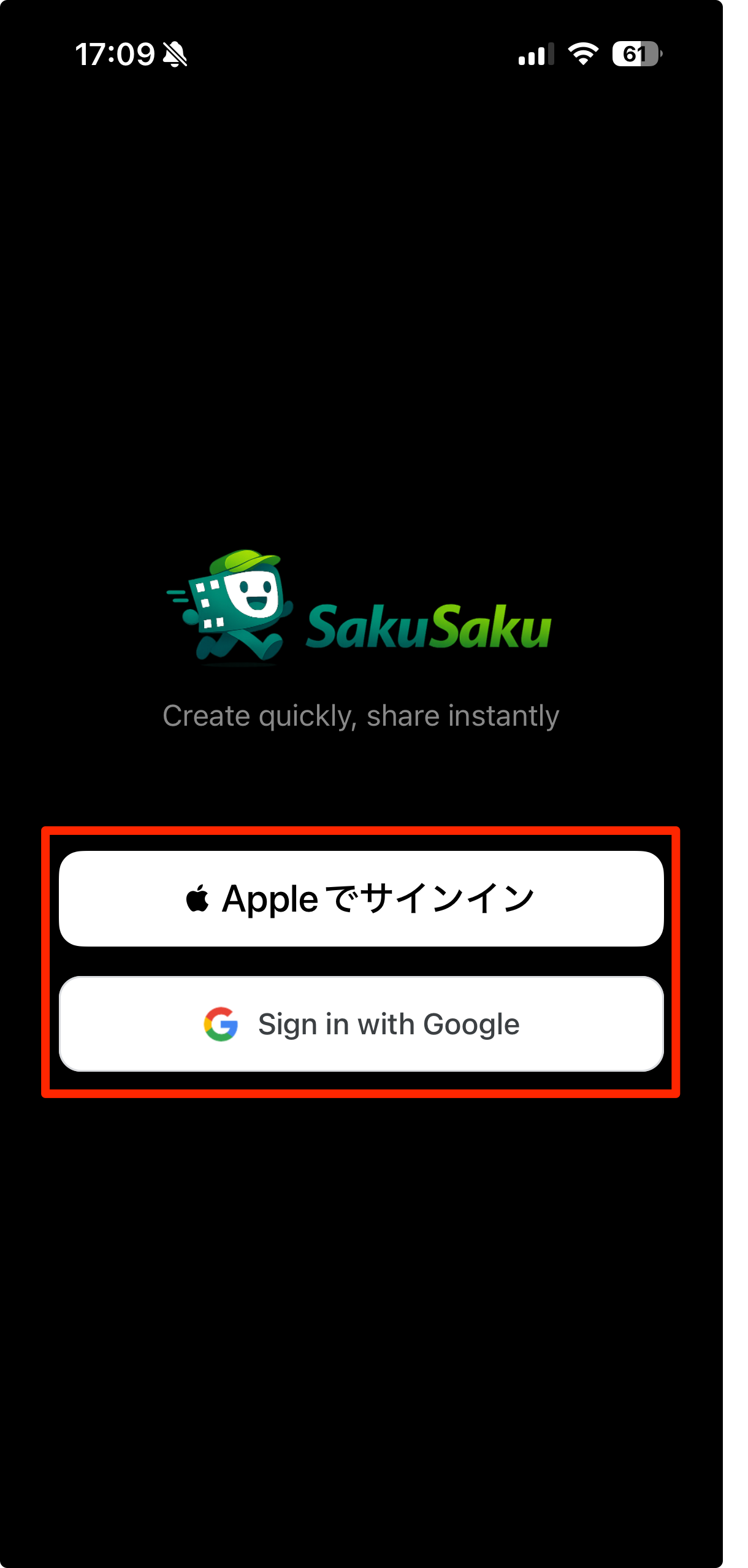
1.アカウント作成
GoogleアカウントもしくはApple IDを使ってアカウントを作成します。
2.ログイン・ログアウト
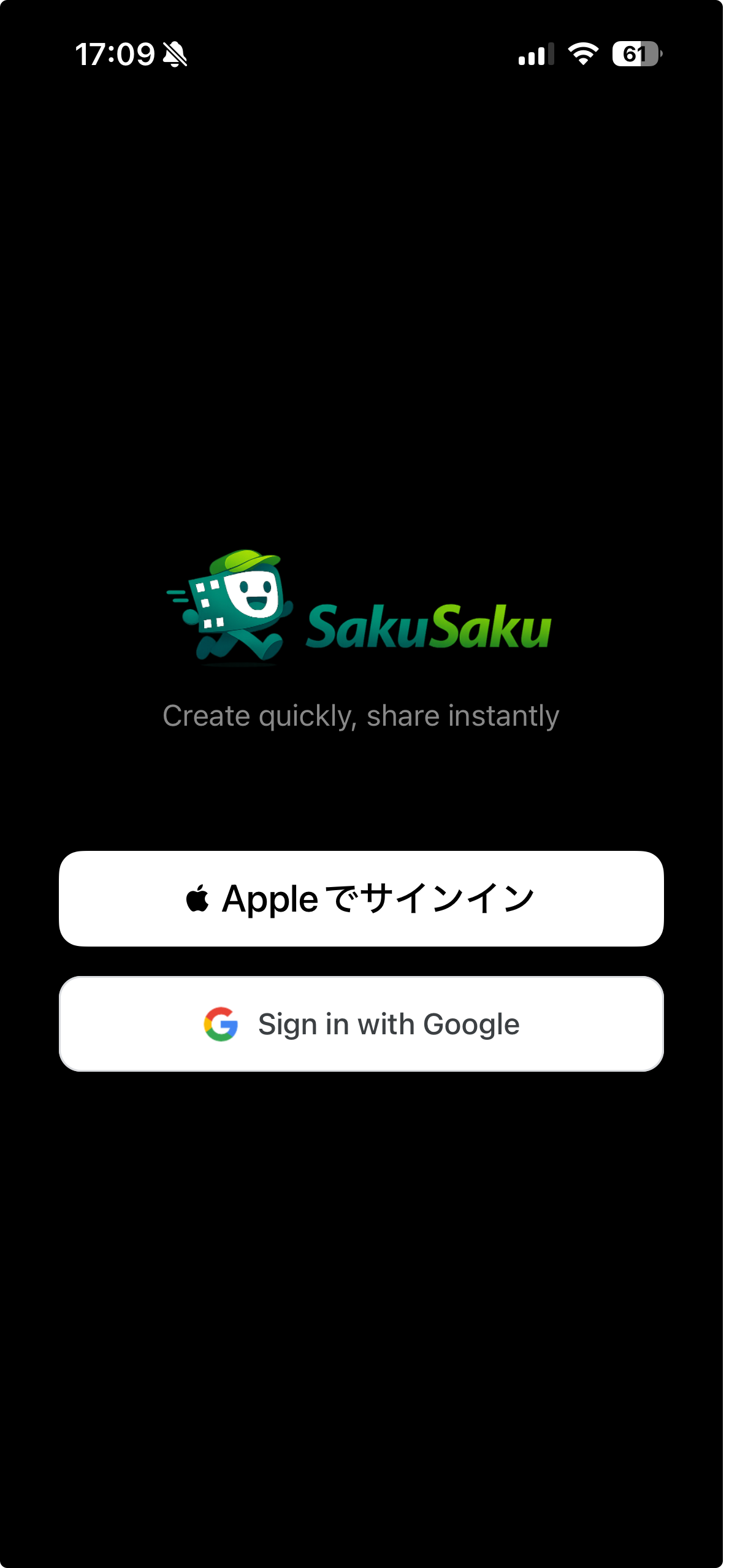
アカウント作成に使用したIDでログインします。
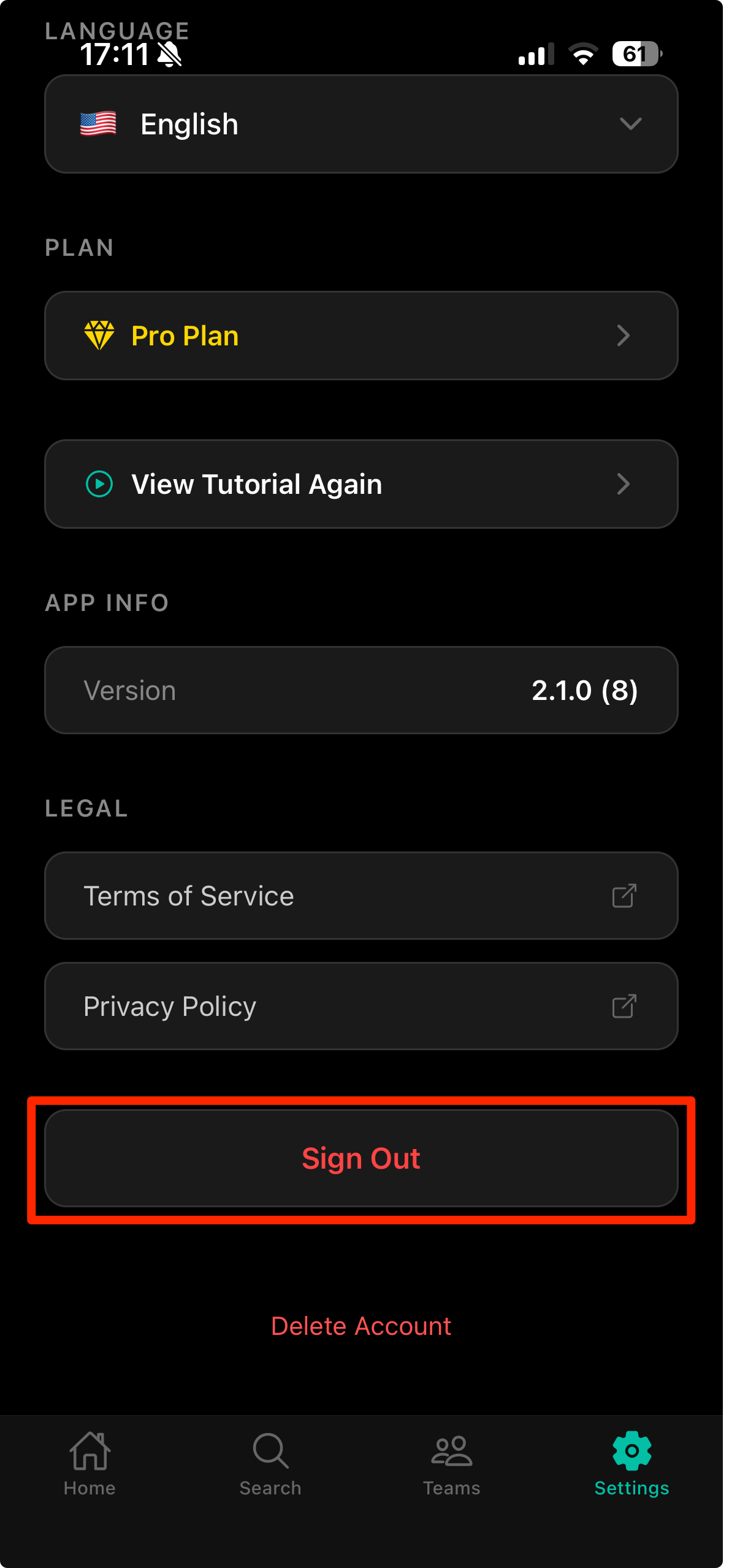
フッターの「設定」をタップして開いた設定画面から「サインアウト」ボタンをタップしてログアウトします。
3.アカウント削除
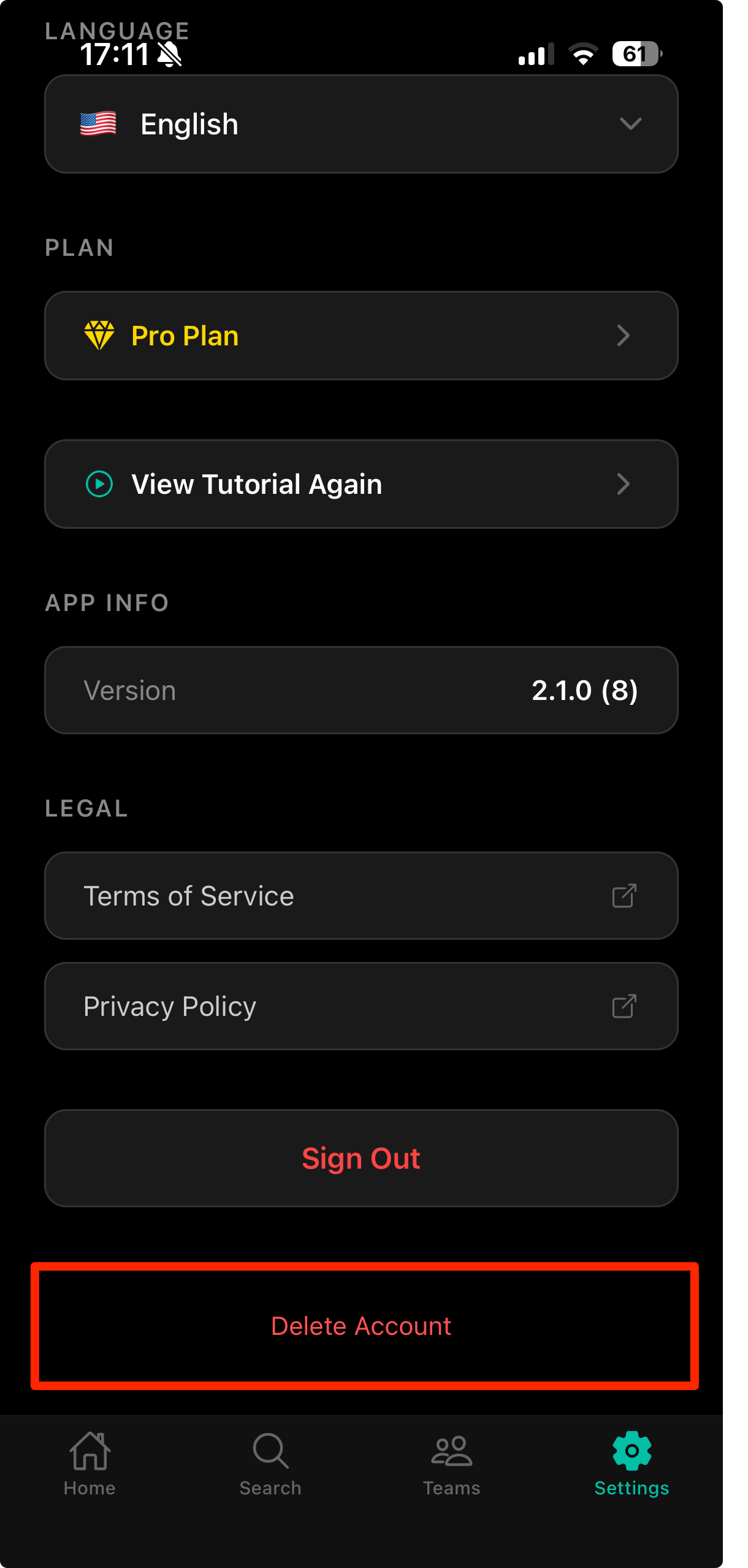
フッターの「設定」をタップして開いた設定画面から「アカウントを削除」をタップしてアカウントを削除します。
4.チーム機能
管理者によるチームの作成
フッターの「チーム」をタップしてチーム画面を表示します。
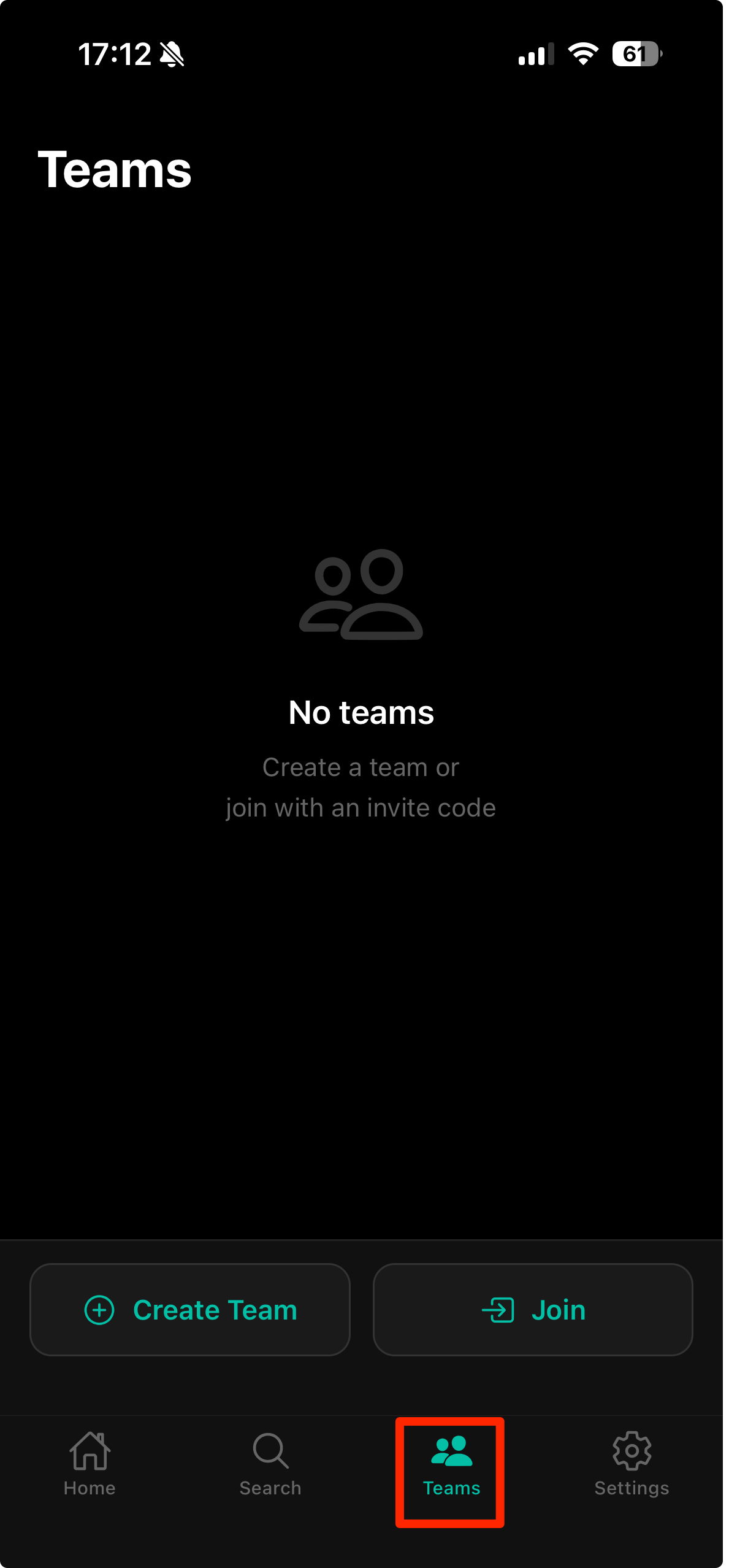
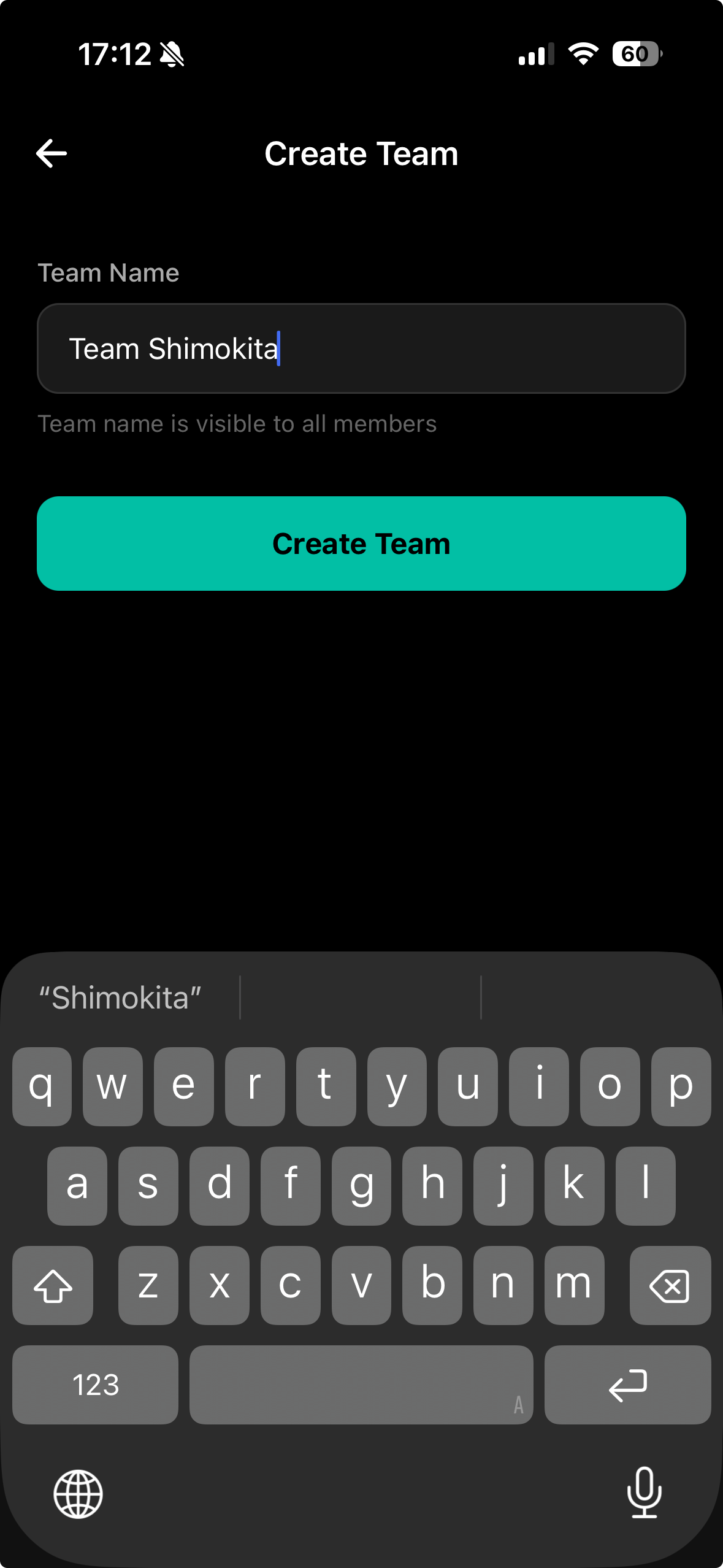
「チームを作成」ボタンをタップして、チーム名を入力し、「チームを作成」ボタンをタップしてチームを作成します。
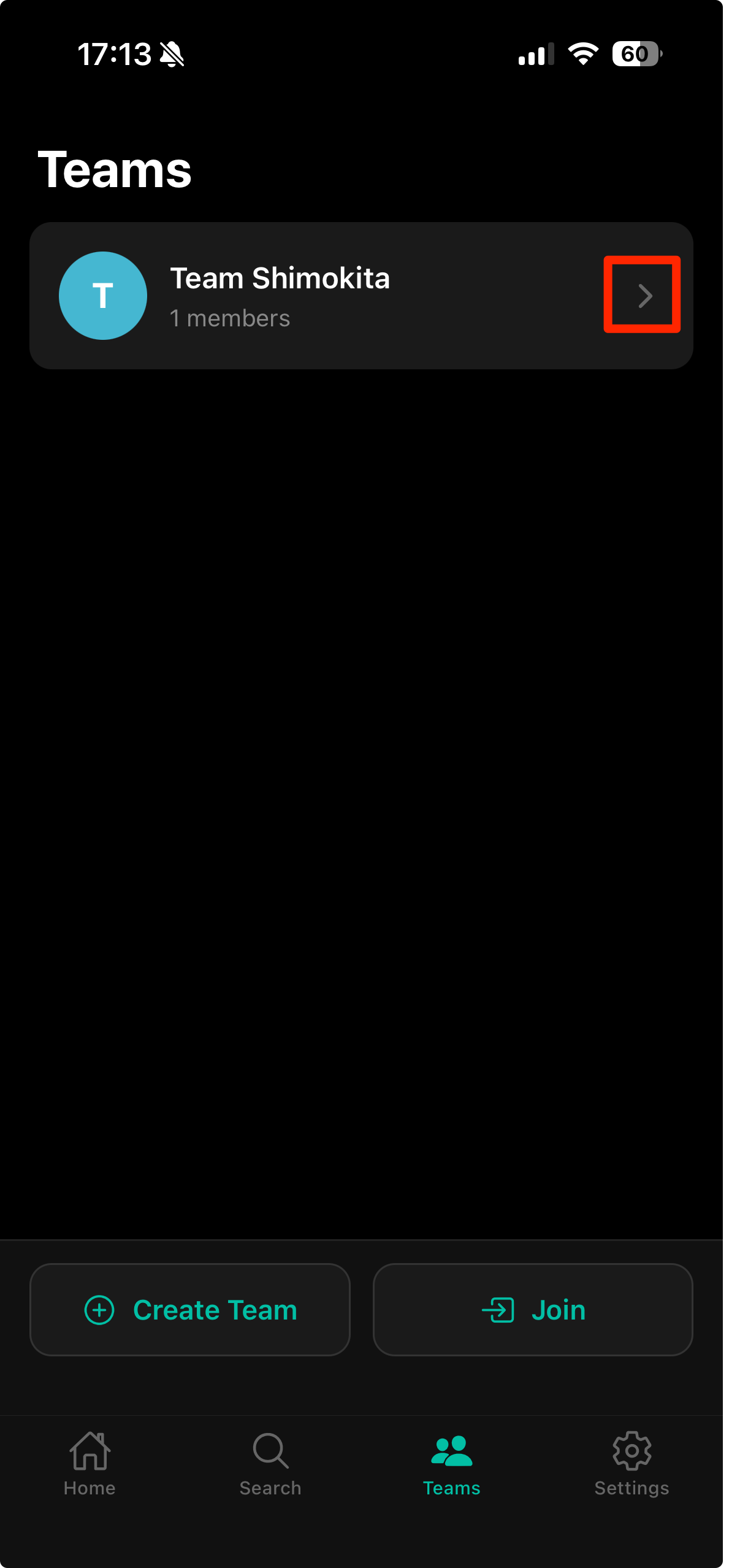
管理者によるチームの編集
チーム画面に一覧でカード表示されているチームをタップすると、そのチームの詳細画面が表示されます。
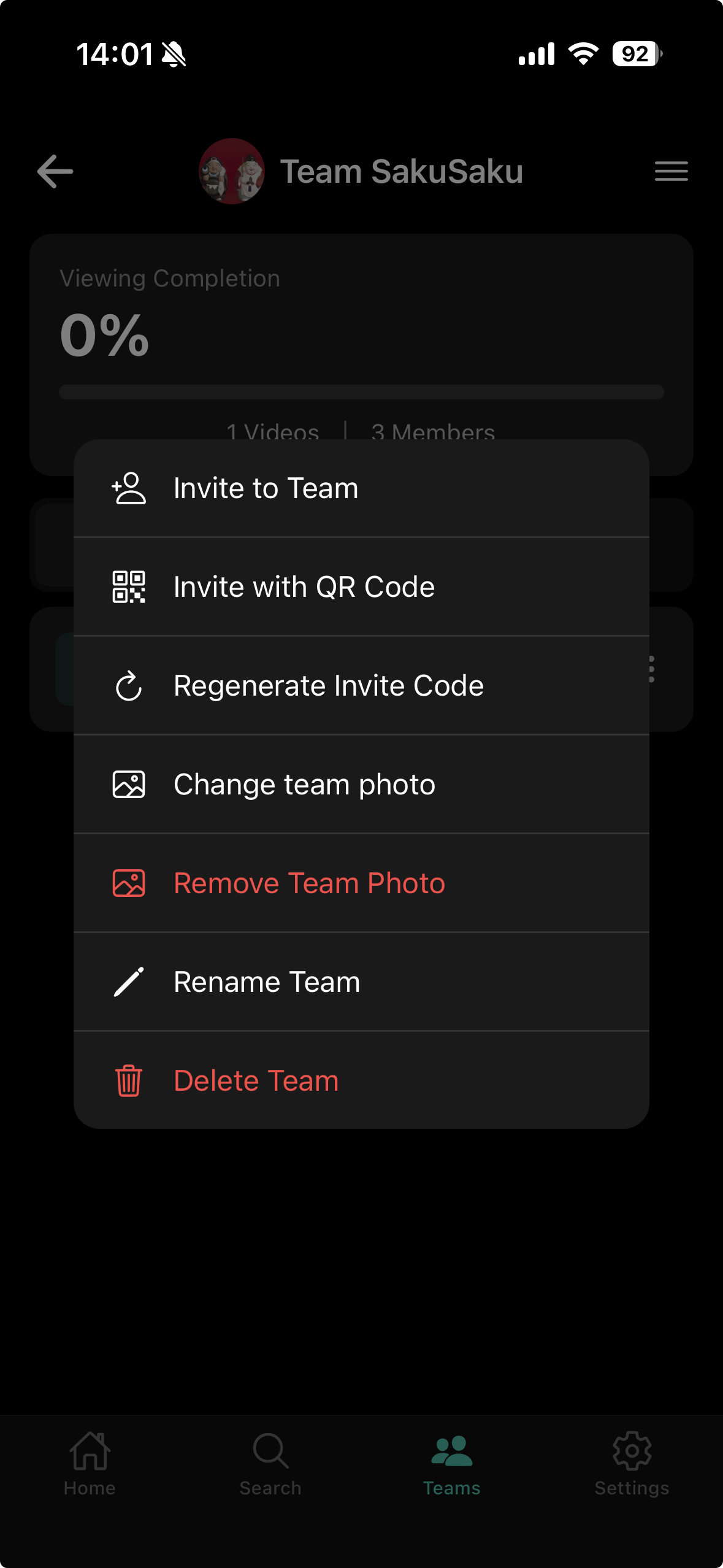
チーム詳細画面のヘッダーの右端にあるハンバーガーアイコンをタップすると編集メニューが表示されます。
管理者によるチームへの招待
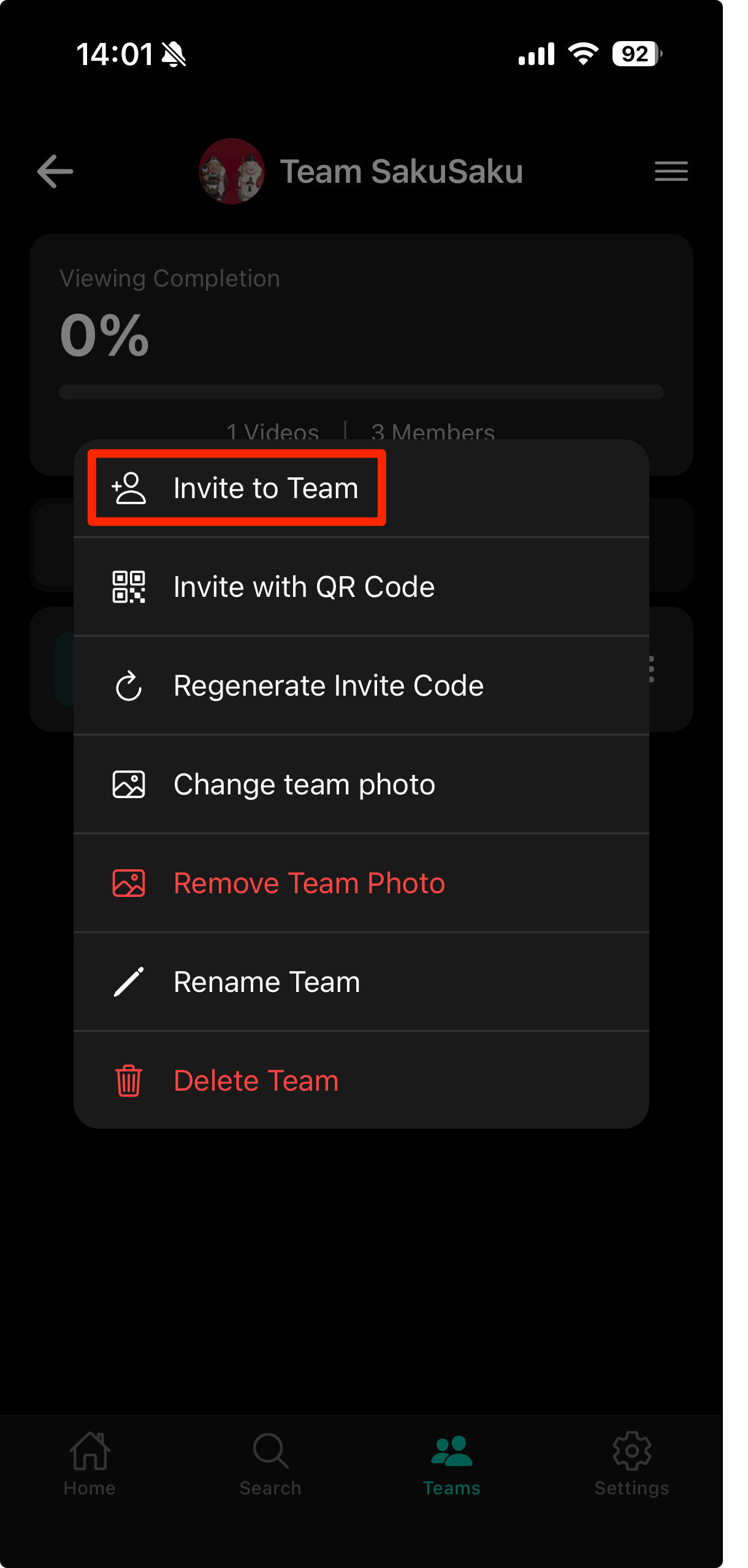
チーム詳細画面のヘッダーの右端にあるハンバーガーアイコンをタップして、メニューから「チームへ招待」をタップします。
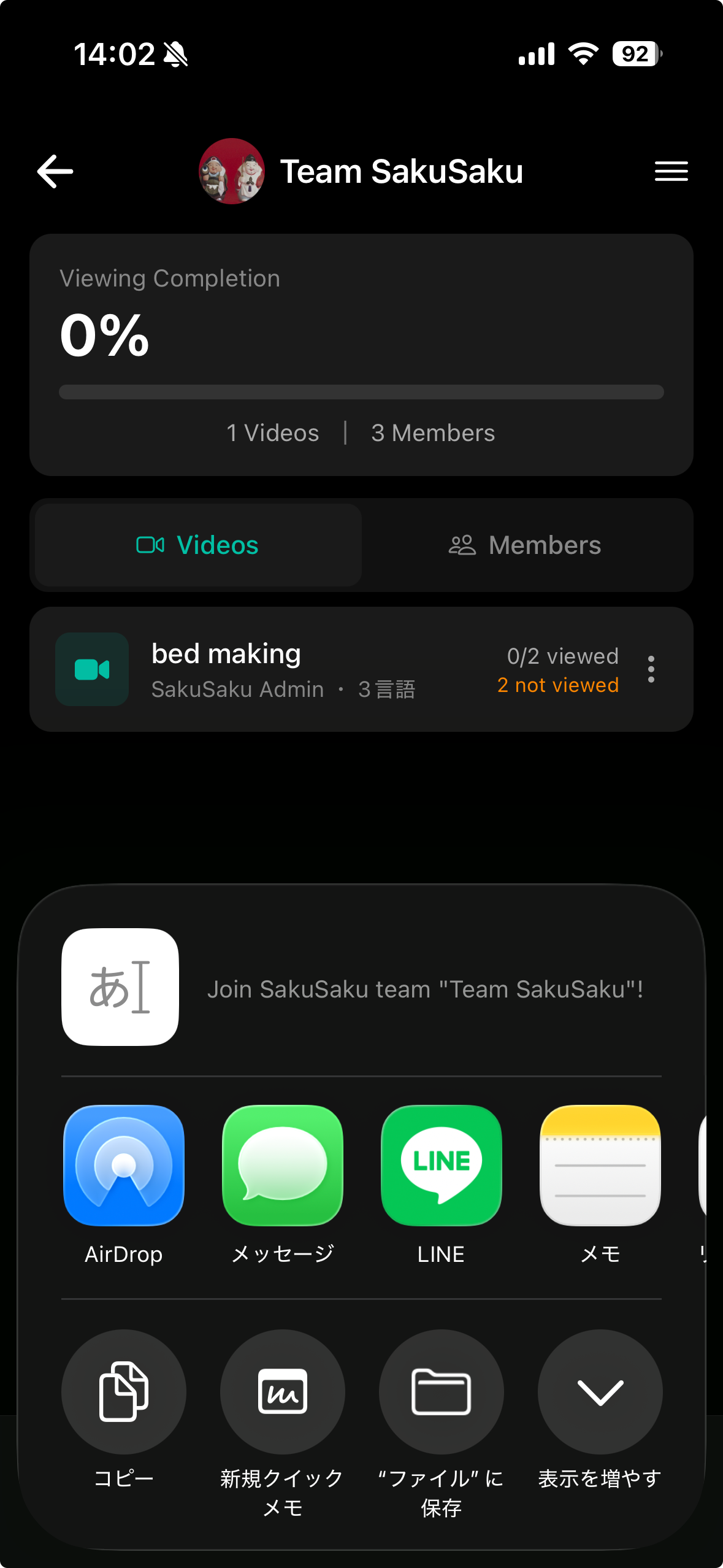
使用しているデバイスの共有機能(ショートメールやLINEなどのメッセージングアプリ等)を使って、そのチームへ参加するための招待コードを送信できます。
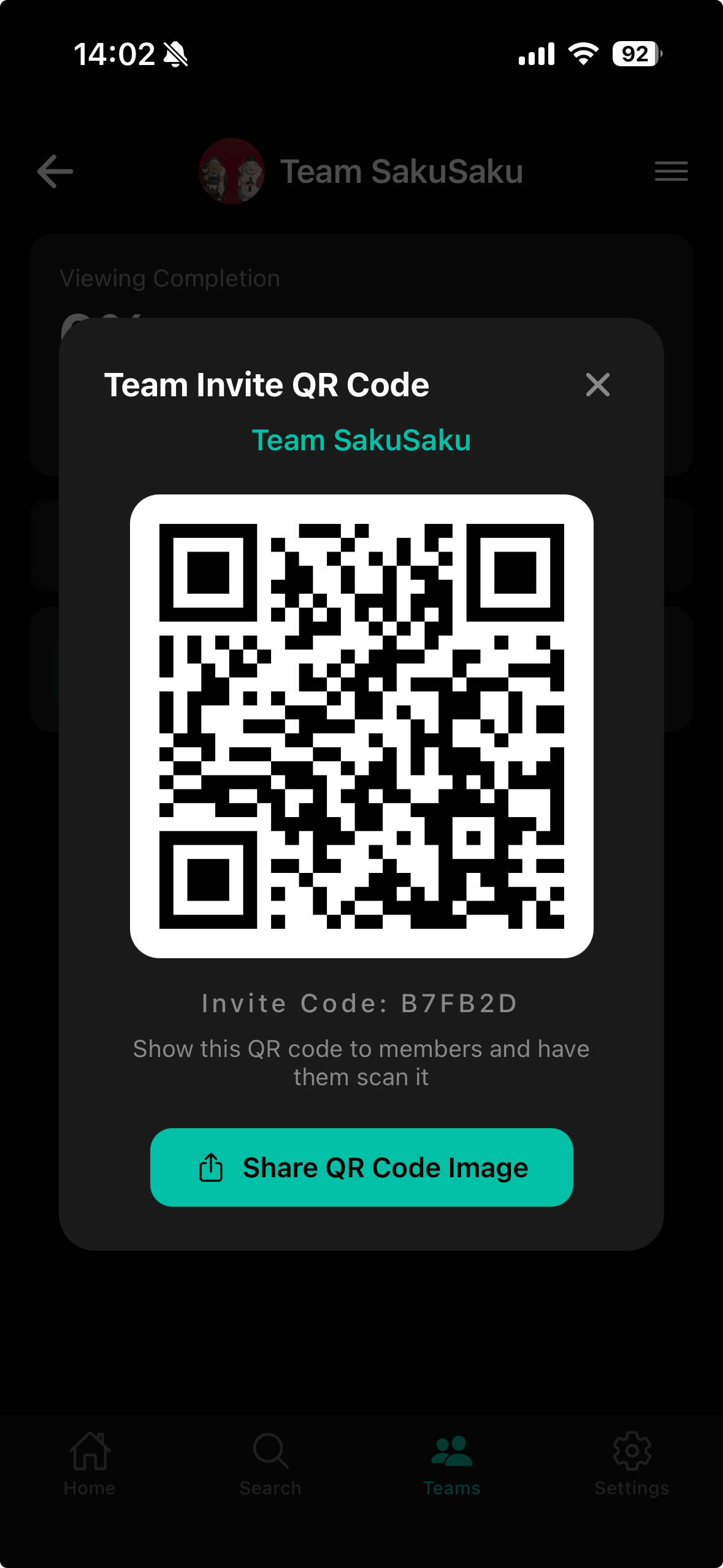
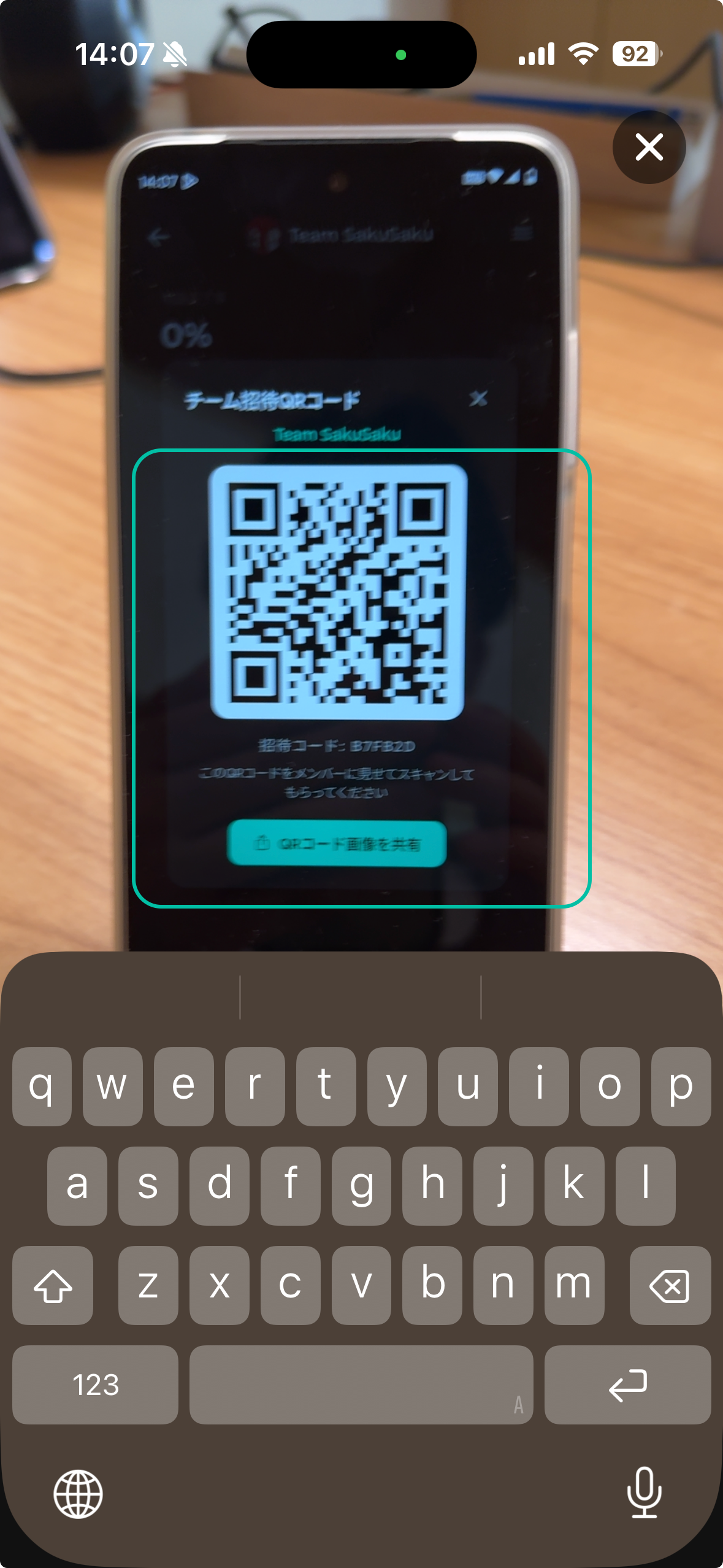
または、メニューから「QRコードで招待」をタップすると、招待コードが埋め込まれたQRコードが表示されます。スタッフにこのQRコードをカメラで読み取ってもらうことで、招待コードの入力なしでチームに参加できます。
スタッフによるチームへの参加
フッターの「チーム」をタップしてチーム画面を表示します。
「参加する」ボタンをタップして、管理者から受け取った招待コードを入力したら「参加する」ボタンをタップします。
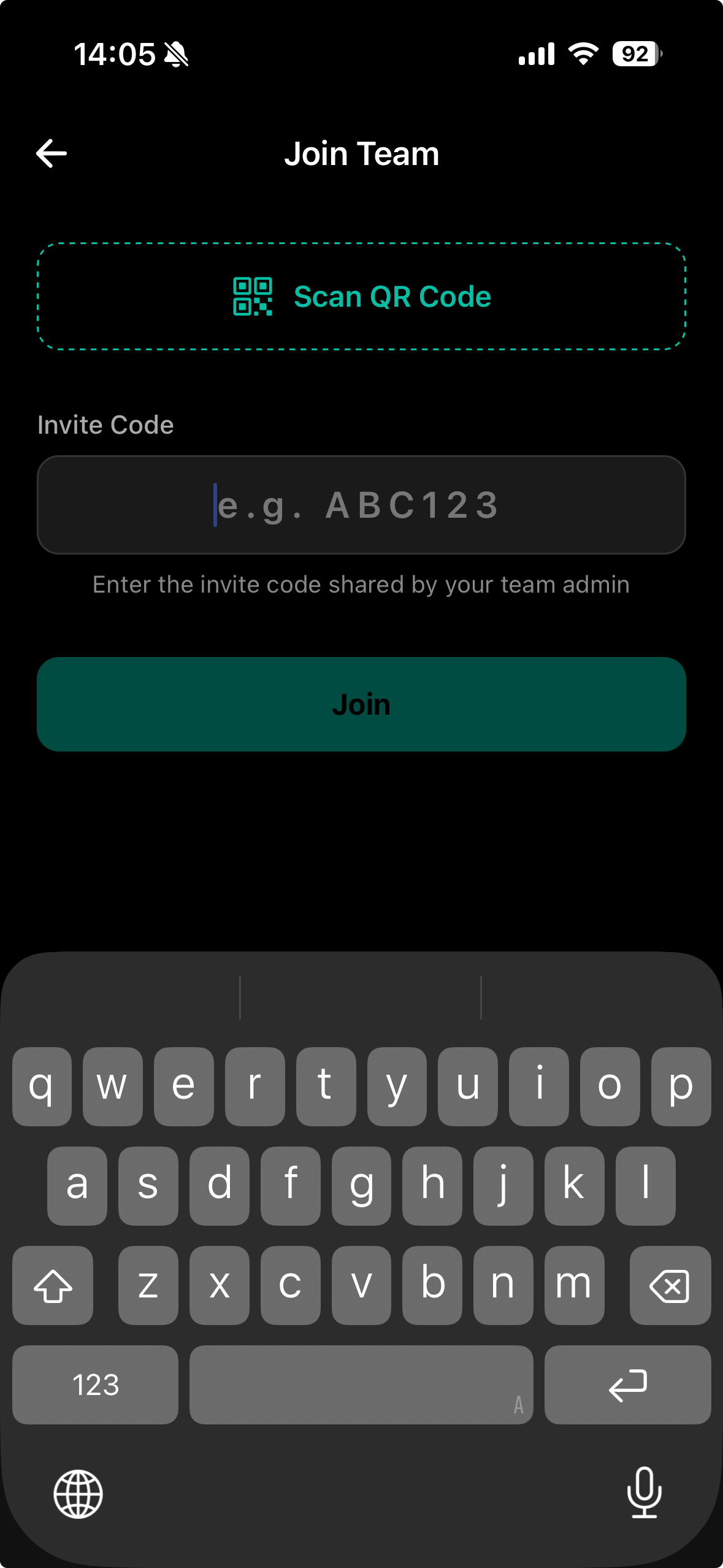
または、画面上部の「QRコードをスキャン」ボタンをタップしてカメラを起動し、管理者が表示したQRコードを読み取ることで、招待コードの入力なしでチームに参加できます。
5.ホーム画面
自分の動画画面では自分で作成(作成中も)した動画の一覧がカード表示されます。
.png)
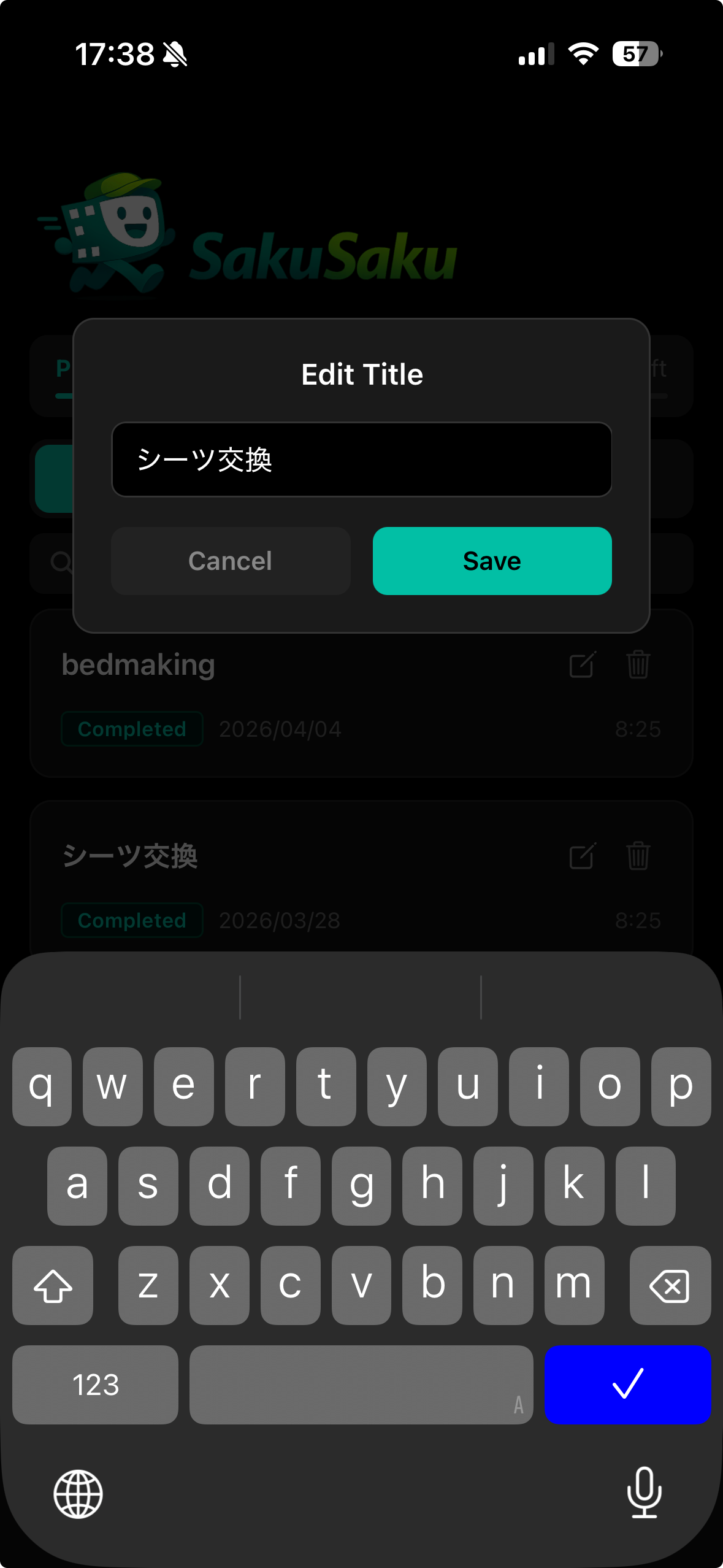
各動画カードの編集アイコンをタップすると動画のタイトルを編集できます。
各動画カードのゴミ箱アイコンをタップするとその動画を削除できます。
各動画カードをタップするとその動画の編集画面が開きます。
6.動画の作成・編集
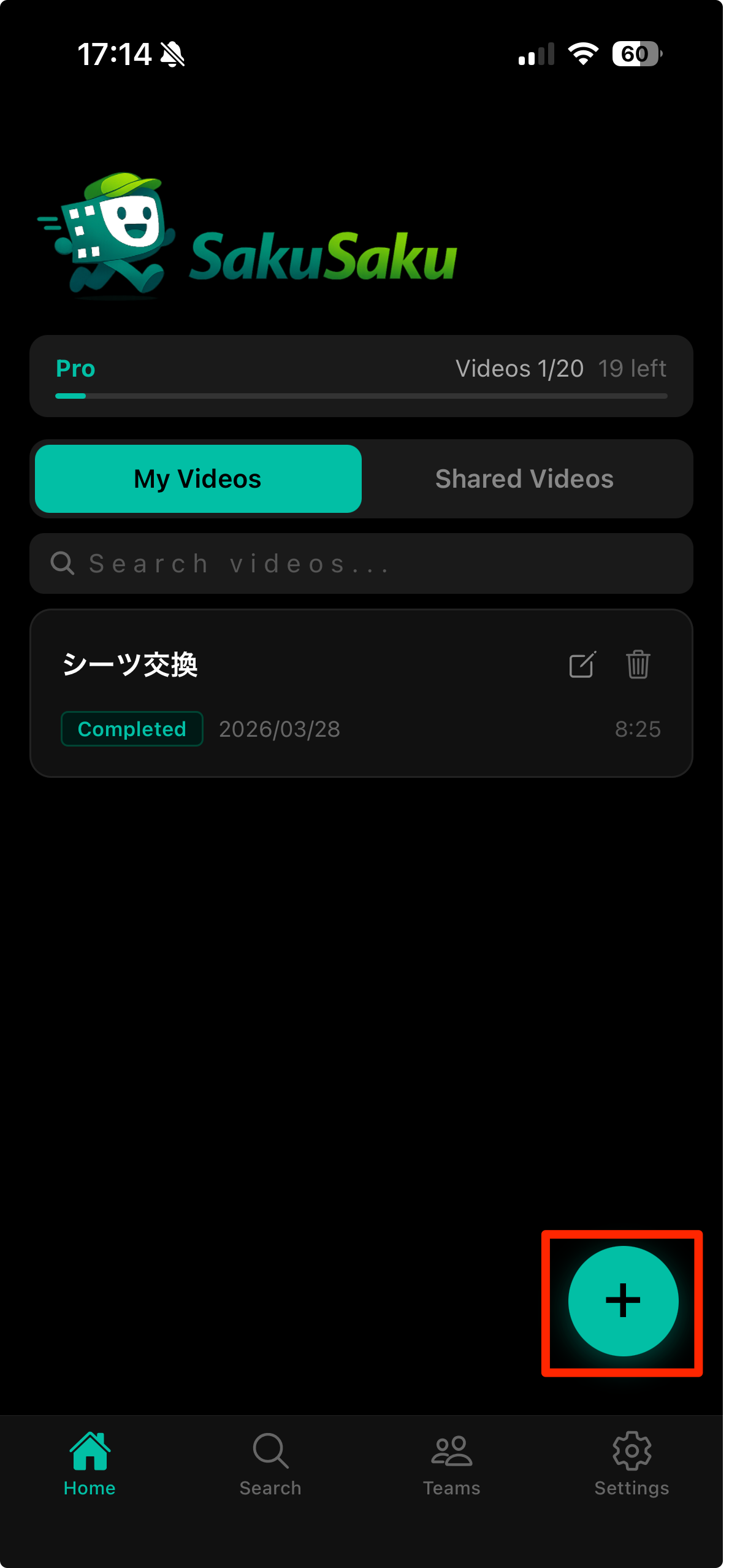
ホーム画面右下の「+」アイコンをタップして新規動画の作成を開始します。
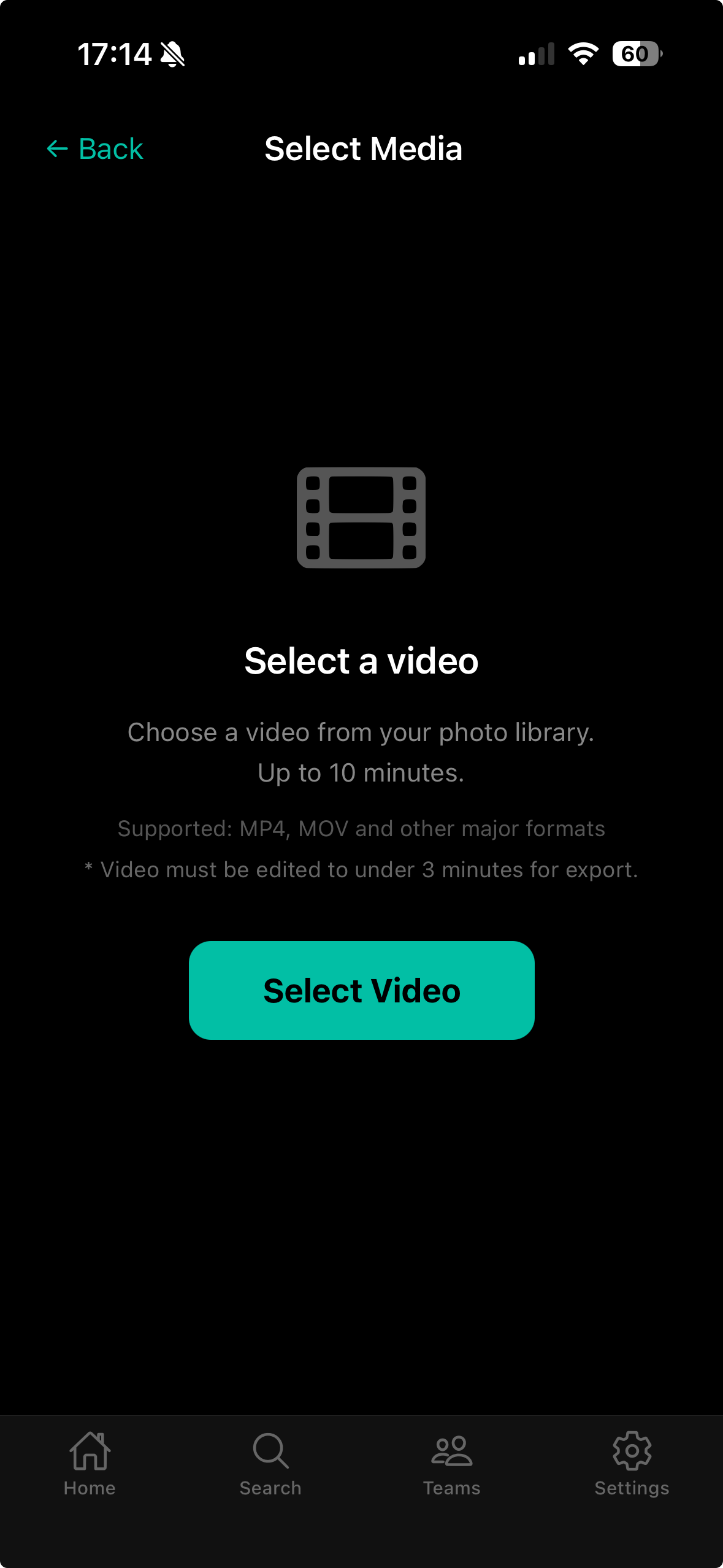
カメラロールから動画を選択します。
動画のタイトルを入力します。
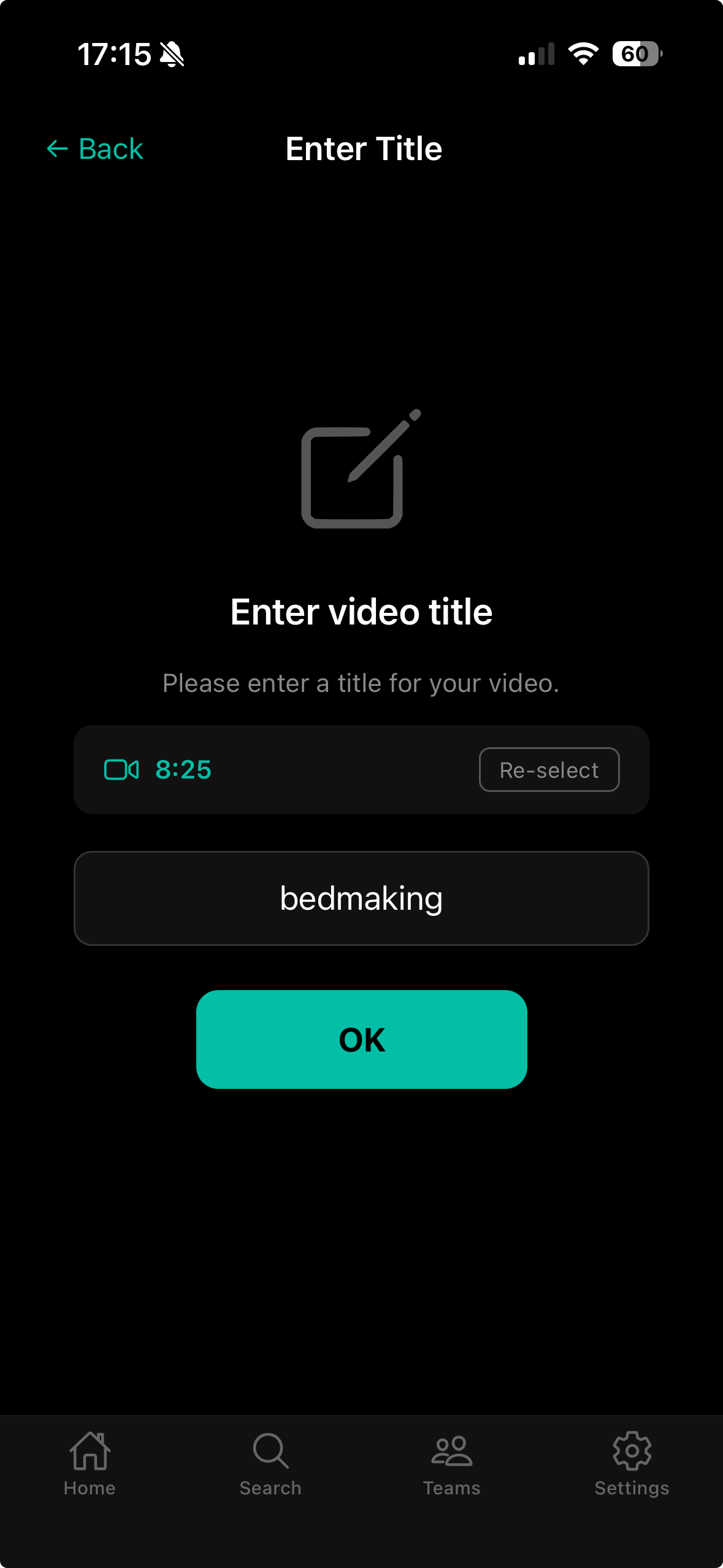
3分を超える動画の場合、編集タブでセグメント(区間)を設定して必要な部分だけを切り出します。
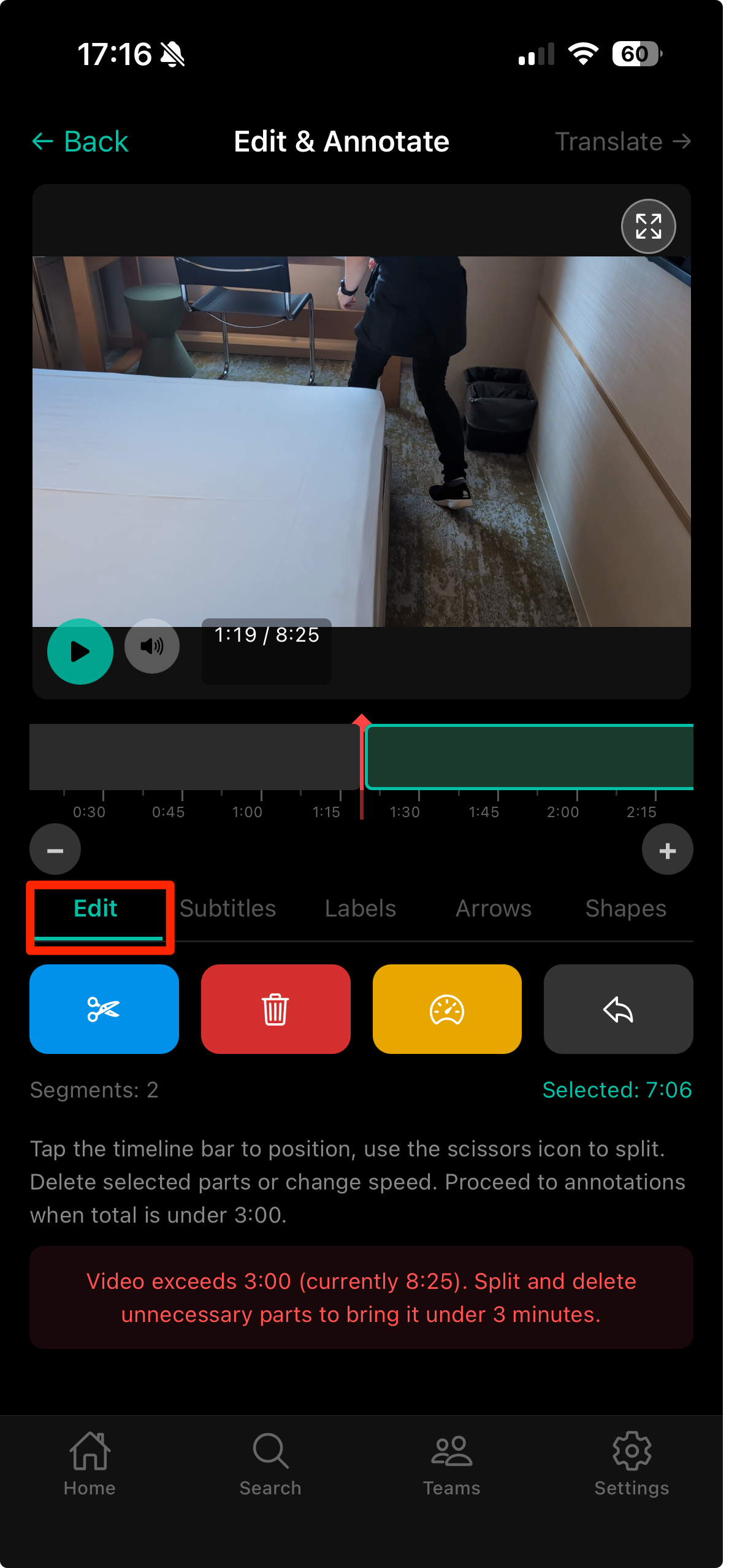
タイムライン上でセグメントの開始位置と終了位置を設定します。
「セグメントを追加」ボタンで複数のセグメントを作成できます。
各セグメントをタップして開始・終了時間を調整します。
不要なセグメントはスワイプまたは削除ボタンで削除できます。
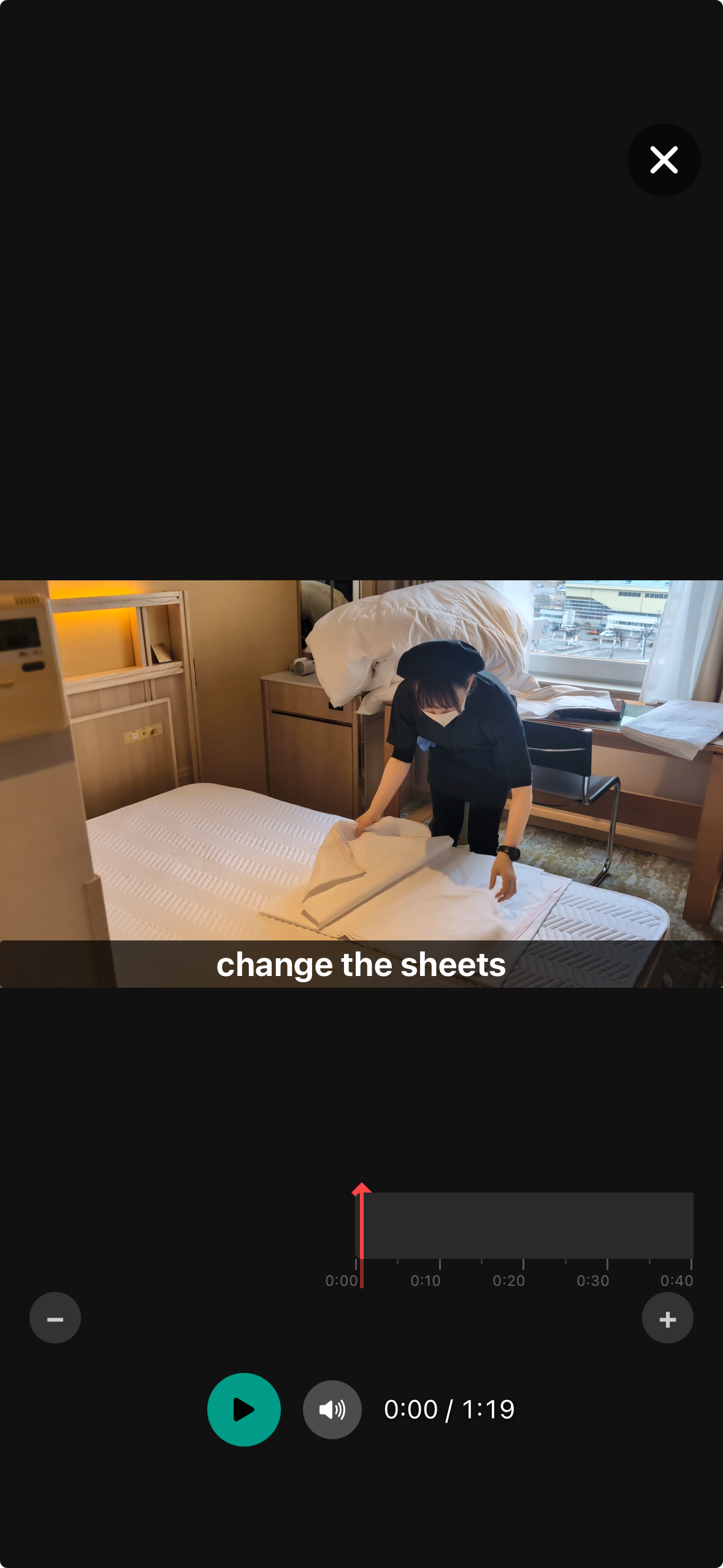
注釈タブで動画に字幕・ラベル・矢印・図形を追加します。
プレビュータブで注釈付きの動画を確認します。
翻訳タブで字幕やラベルを多言語に翻訳します。
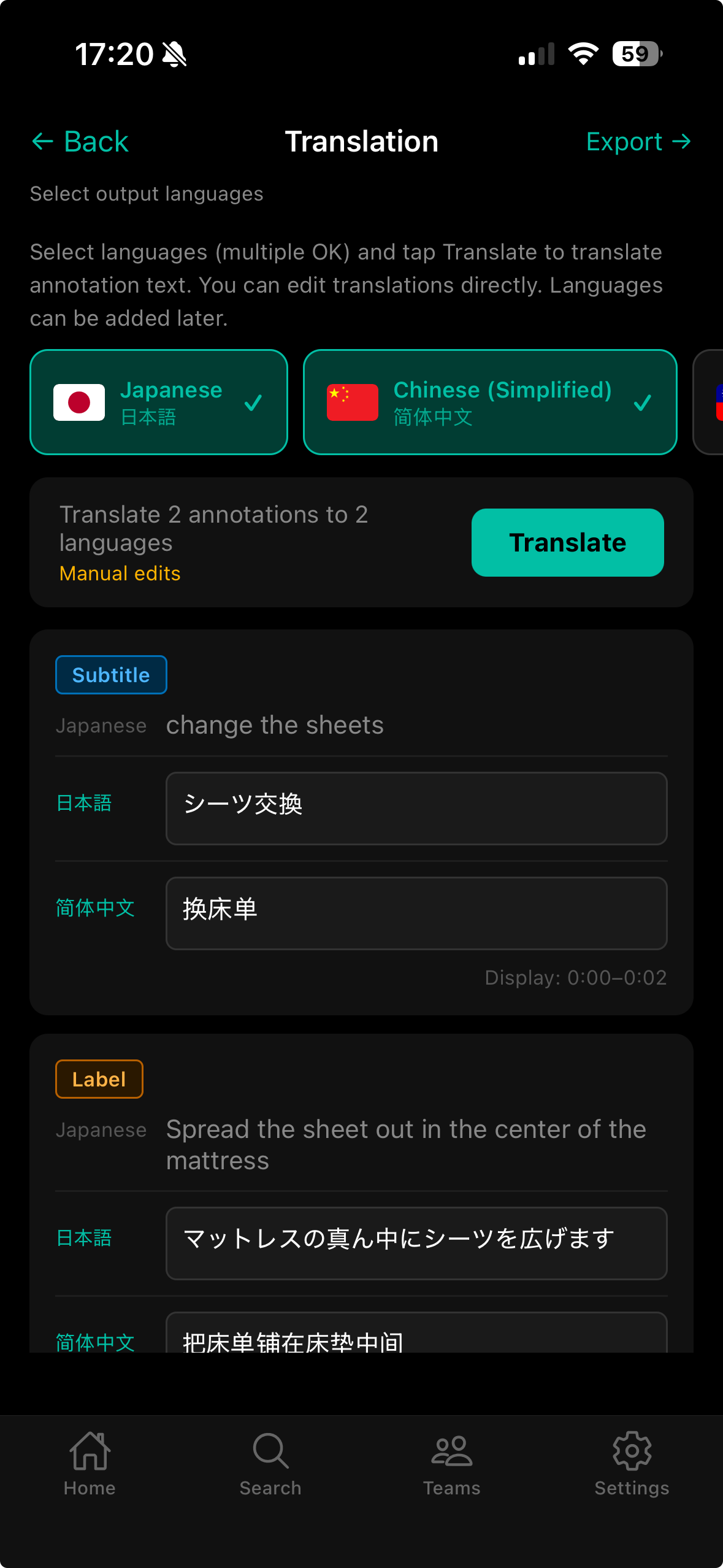
翻訳先の言語を選択します。複数言語を同時に選択できます。
「翻訳する」ボタンをタップするとAIが自動で翻訳を実行します。
書き出しタブで動画を書き出します。
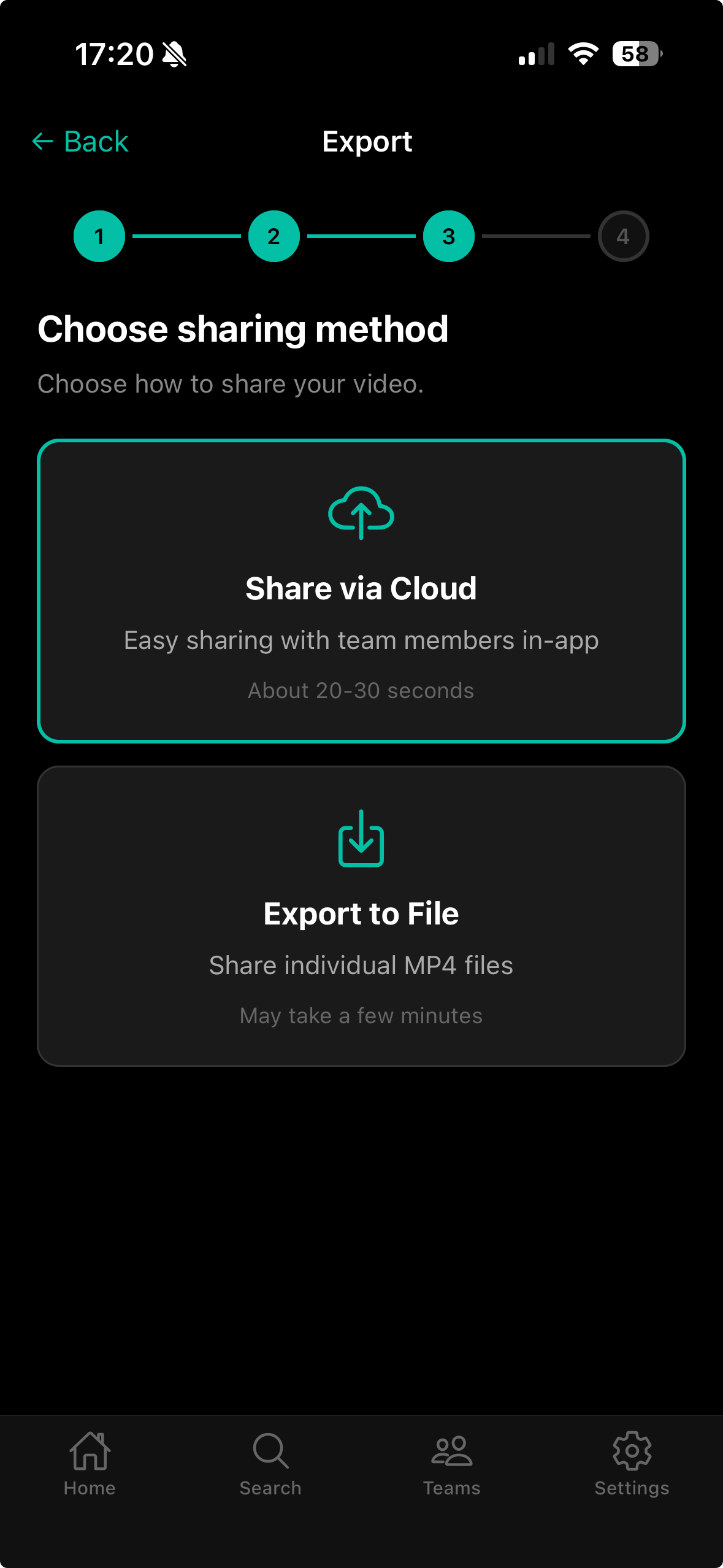
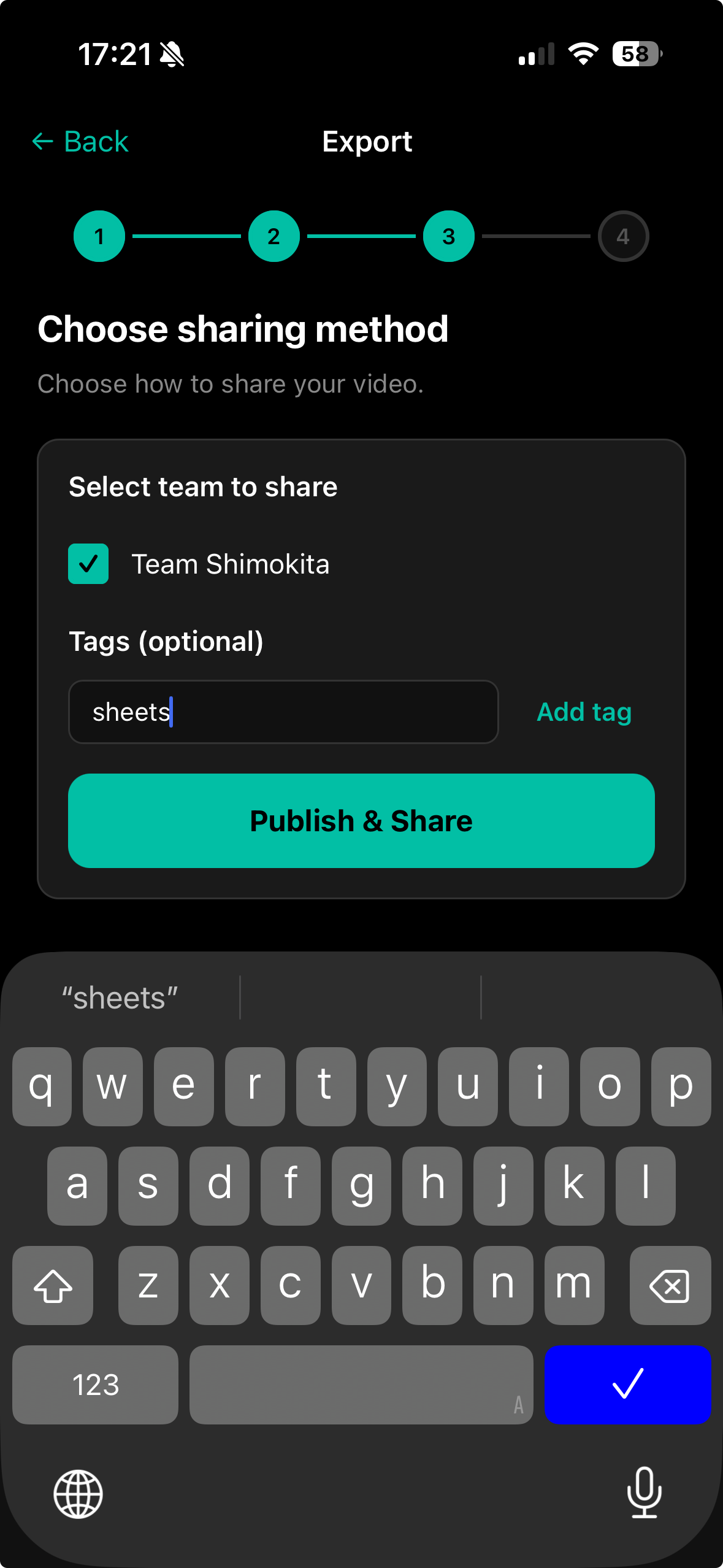
「クラウドに共有」カードをタップするとチームメンバーに共有できる形式で書き出します。
共有先のチームとタグを選択します。
「ファイルに書き出し」カードをタップすると端末にファイルとして保存できます。
書き出す言語を選択します。
書き出し先を選択してファイルを保存します。
書き出し処理が完了するまで待ちます。
クラウド共有が完了すると共有完了画面が表示されます。

共有リンクをコピーしてメッセージアプリ等で送信できます。
「ホームに戻る」をタップしてホーム画面に戻ります。
7.動画の視聴
ホーム画面の「共有された動画」タブをタップして共有動画の一覧を表示します。
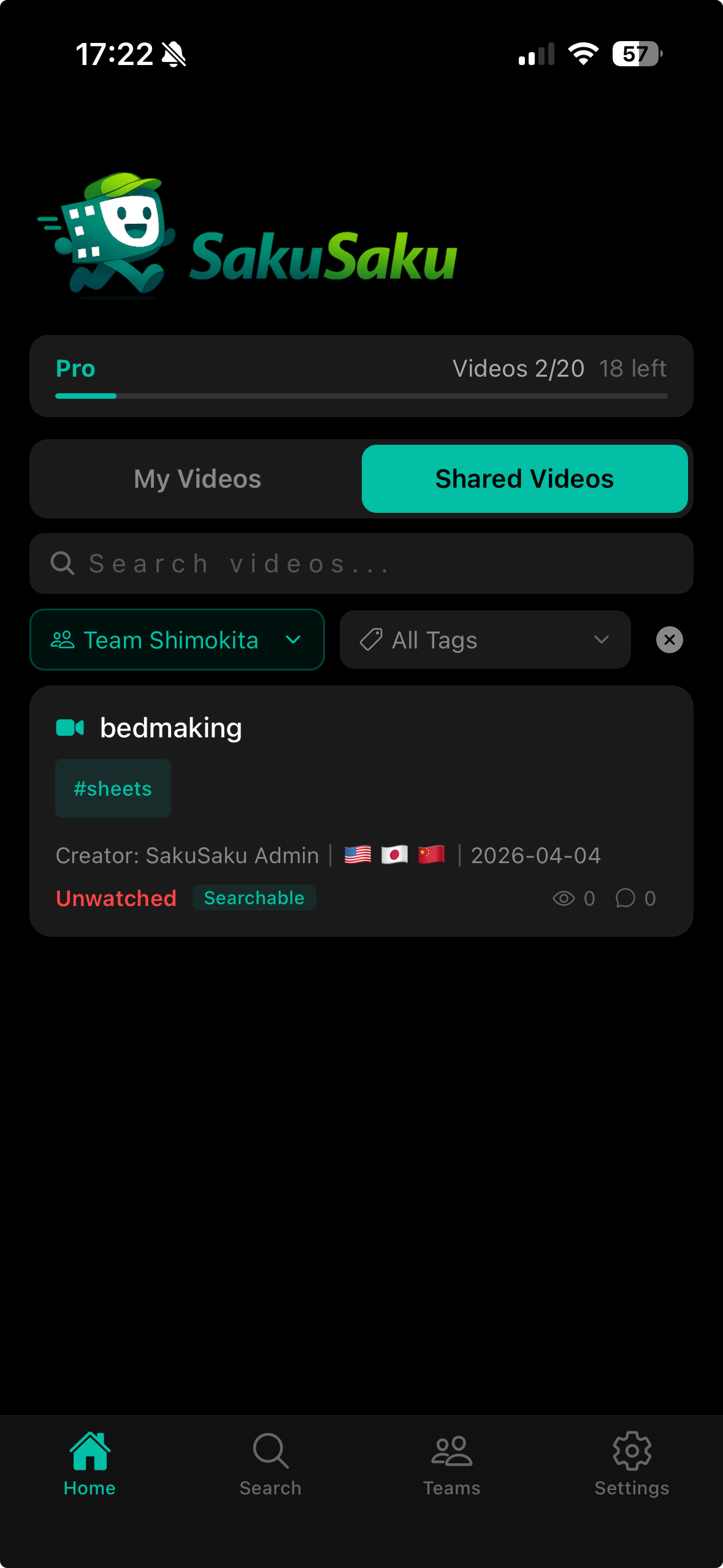
動画カードをタップして動画詳細画面を表示します。
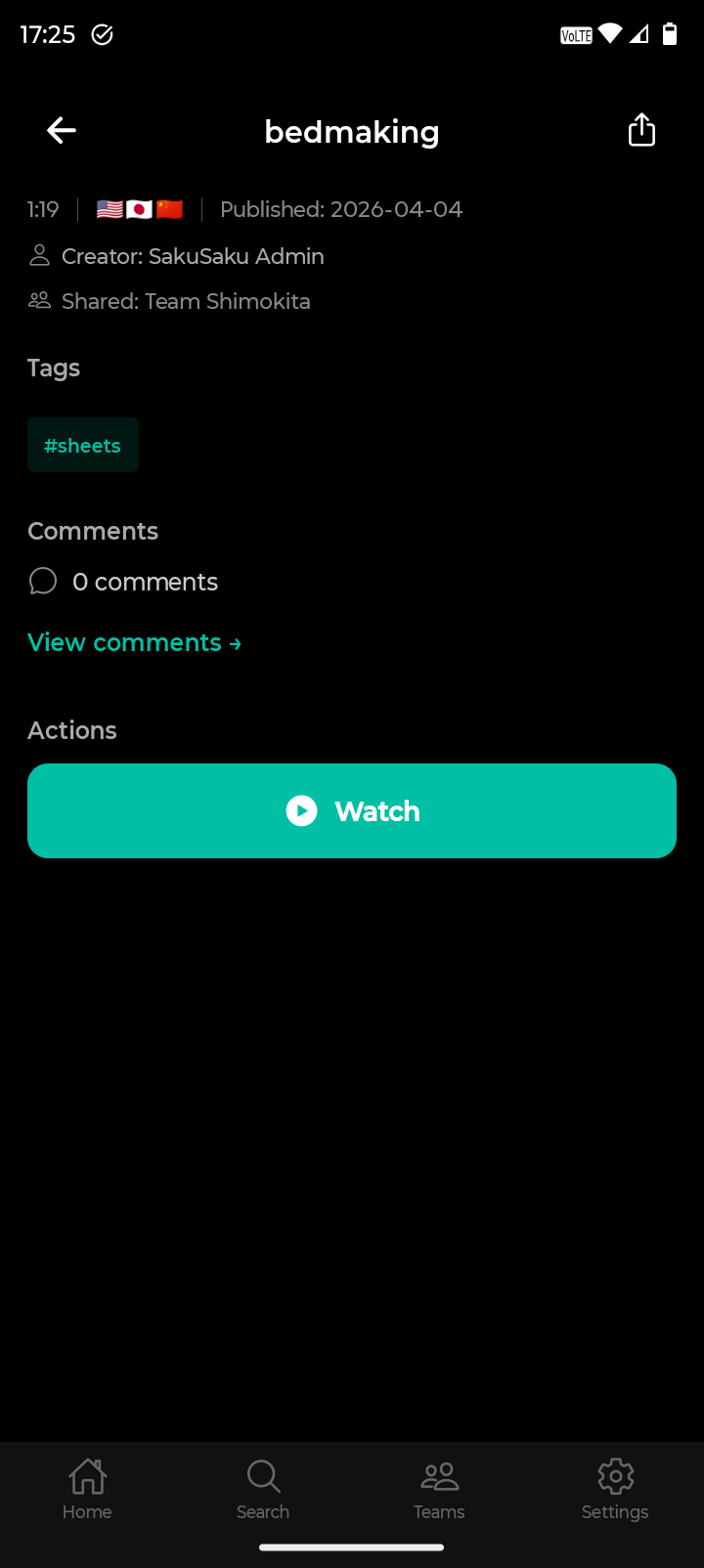
「視聴する」ボタンをタップして動画の視聴を開始します。
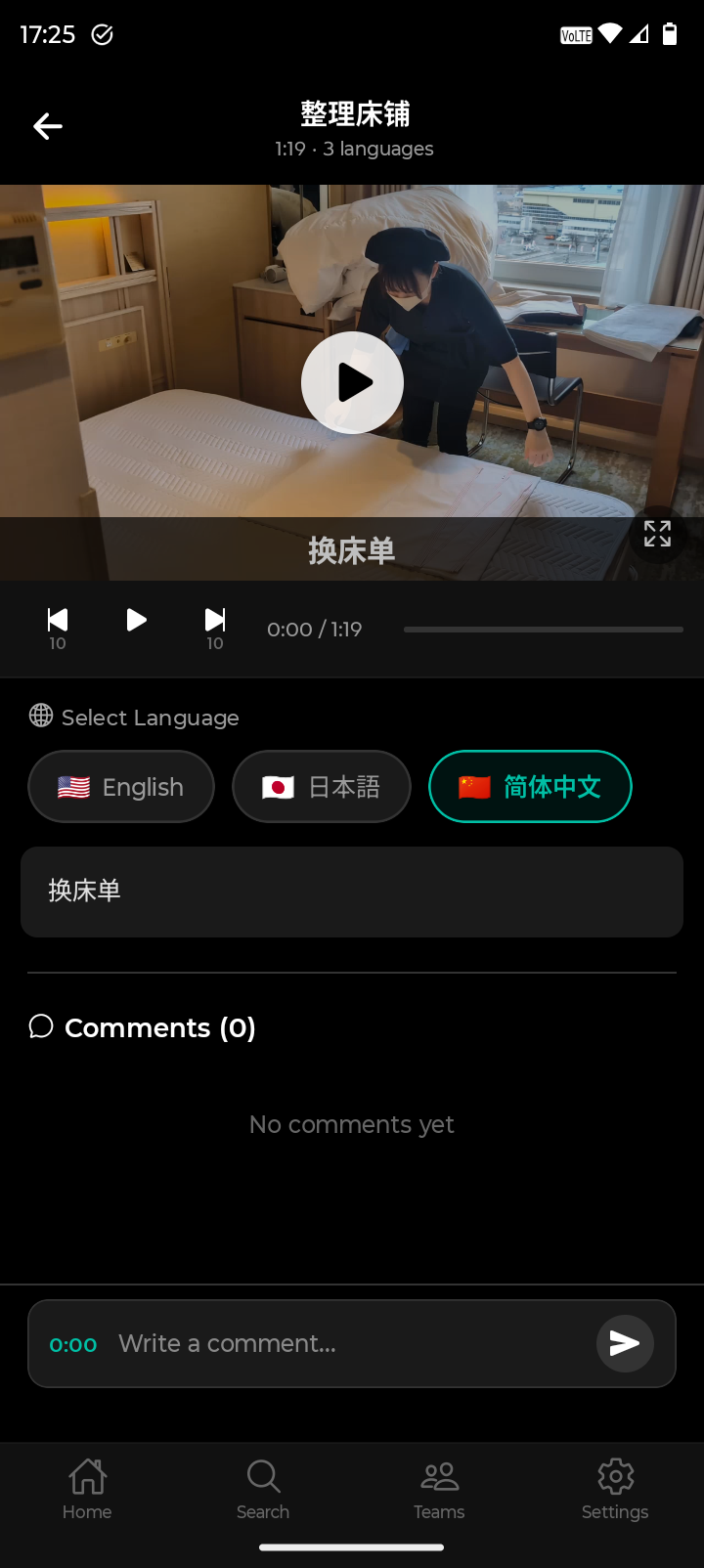
視聴画面では以下の操作ができます。
言語切り替えボタンで字幕・ラベルの表示言語を変更できます。
タイムスタンプ付きコメントを投稿して他のメンバーとコミュニケーションできます。
コメントのタイムスタンプをタップするとそのシーンにジャンプできます。
8.AI検索機能
ホーム画面の「共有された動画」タブで検索バーをタップします。
自然言語で見たいシーンの内容を入力します(例: 「浴室の掃除方法」)。
AIが動画のシーンを分析し、関連するシーンを検索結果として表示します。
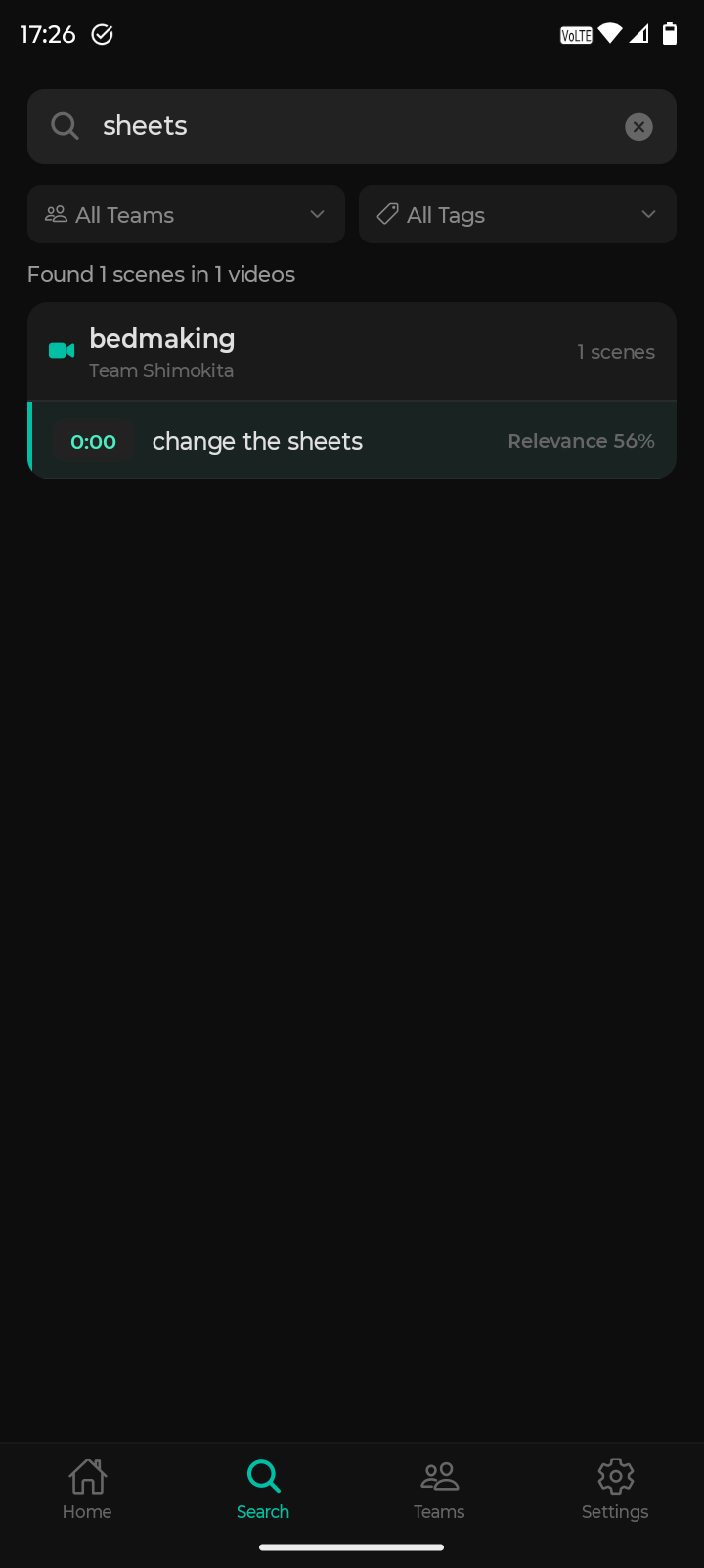
検索結果にはチーム名と関連度が表示されます。
検索結果をタップするとそのシーンから動画の視聴を開始できます。
9.設定機能
フッターの「設定」をタップして設定画面を表示します。アカウント情報の確認、言語の変更、プランの確認などができます。
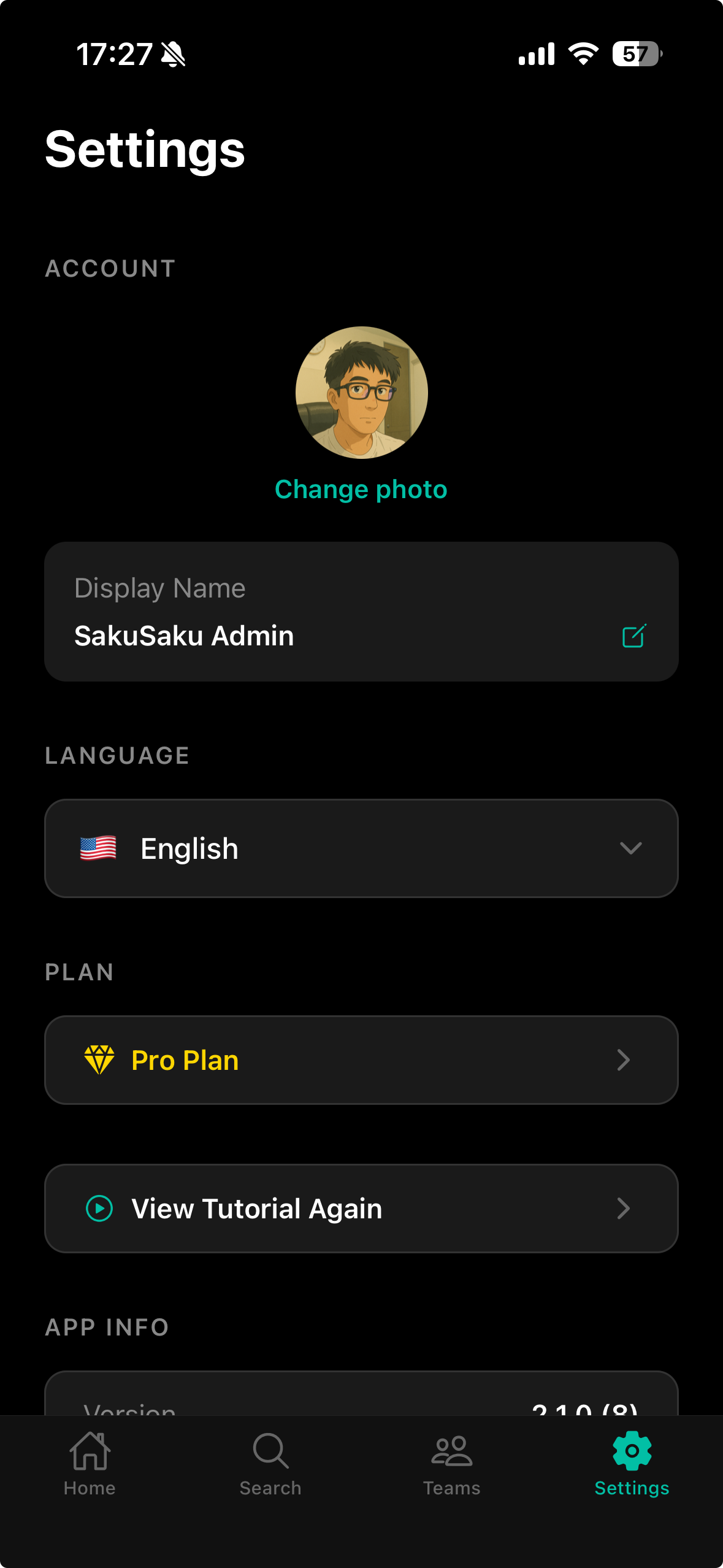
「もう一度チュートリアルを見る」をタップすると、アプリの使い方チュートリアルを再度確認できます。