
Online Help
Step-by-step guides for using SakuSaku
Introduction
SakuSaku video manuals are designed to evolve over time. Start with a simple recording, then add subtitles, labels, and comments to make it more relevant to your workplace.
AI analyzes each scene of shared videos, allowing users to search in natural language and find exactly the scene they need.
Keep videos short (under 3 minutes) and focused on one task per video for the best results.
Screen Layout
SakuSaku consists of 4 main screens
Home Screen
Consists of My Videos and Shared Videos.
- ・Anyone can create and share videos from My Videos (Free plan has some limitations)
- ・Shared Videos shows videos shared in teams you belong to, where you can watch them
- ・Pro plan admins can edit, delete, and track viewing status of shared videos
AI Search Screen
AI understands scenes, labels, comments, and visual content of each video, enabling natural language search to find the exact scene you need.
- ・Enter keywords or phrases to instantly find the scene you need from any video
- ・Tap a search result to start playback from that exact scene (staff can quickly find answers while working)
Teams Screen
Create teams as groups to share videos with.
- ・View shared videos, members, viewing status per team, and send reminders to unwatched members (Pro plan only)
Settings Screen
Manage settings, plan changes, and account preferences.
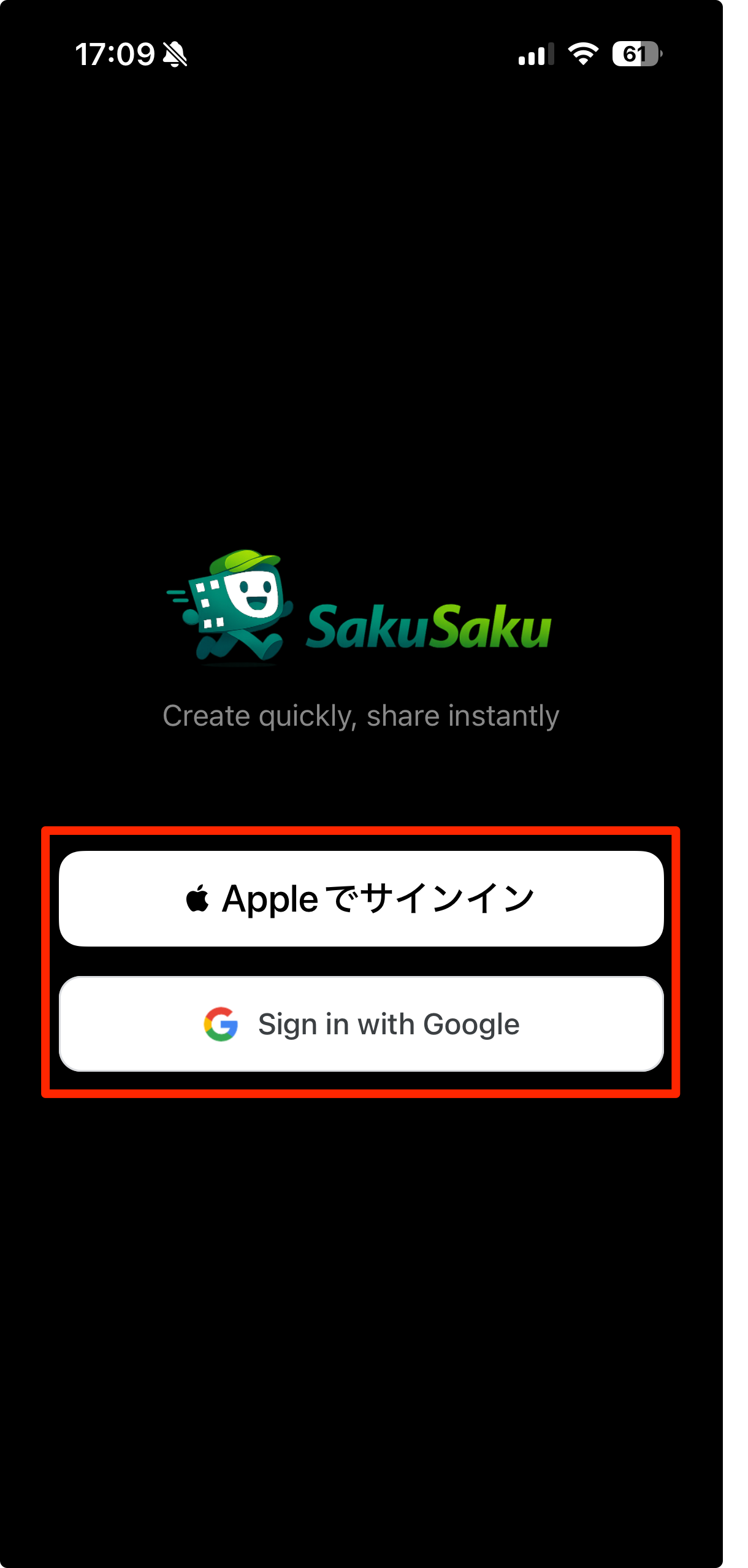
1.Account Creation
Create an account using your Google account or Apple ID.
2.Login & Logout
Log in with the ID you used to create your account.
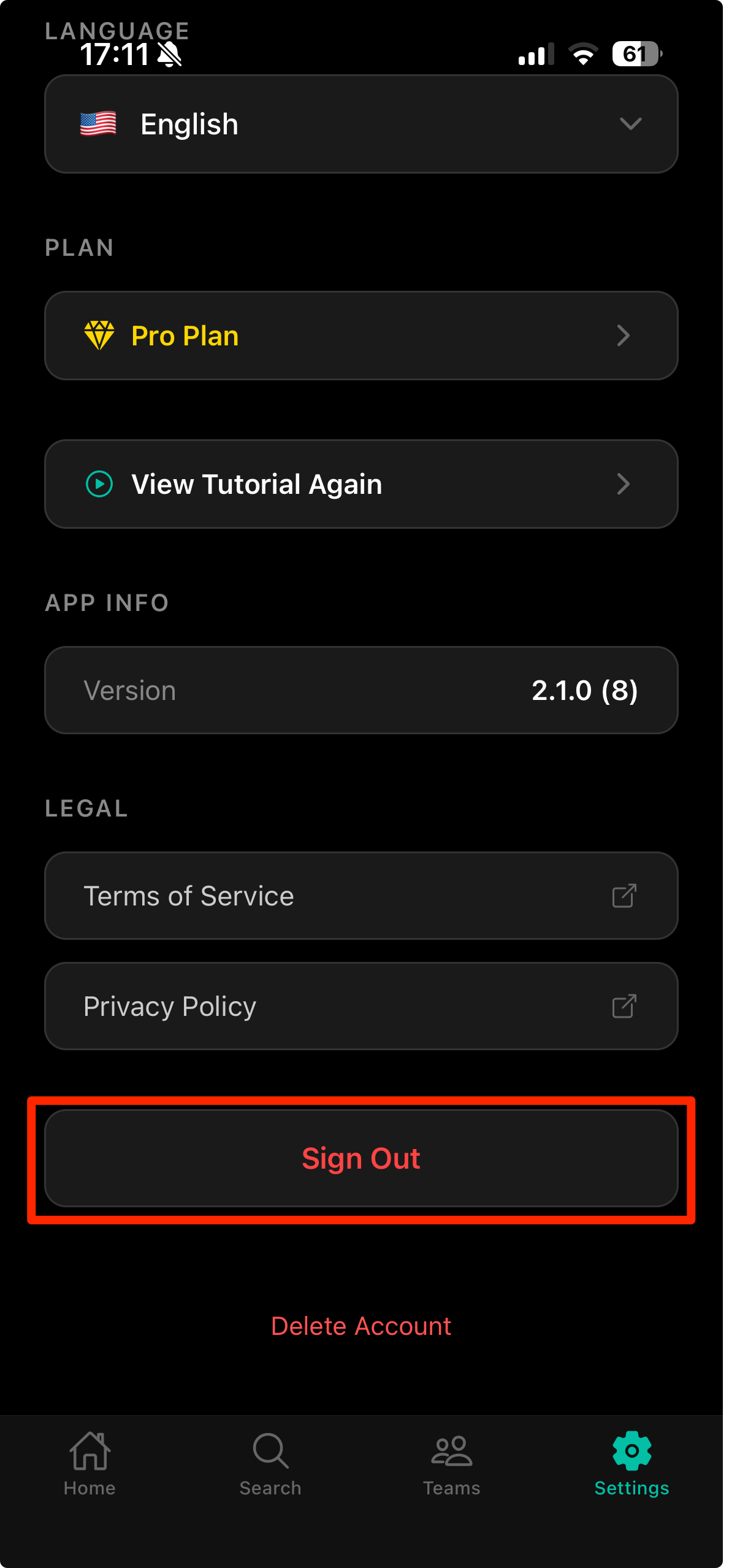
Tap 'Settings' in the footer, then tap 'Sign Out' to log out.
3.Account Deletion
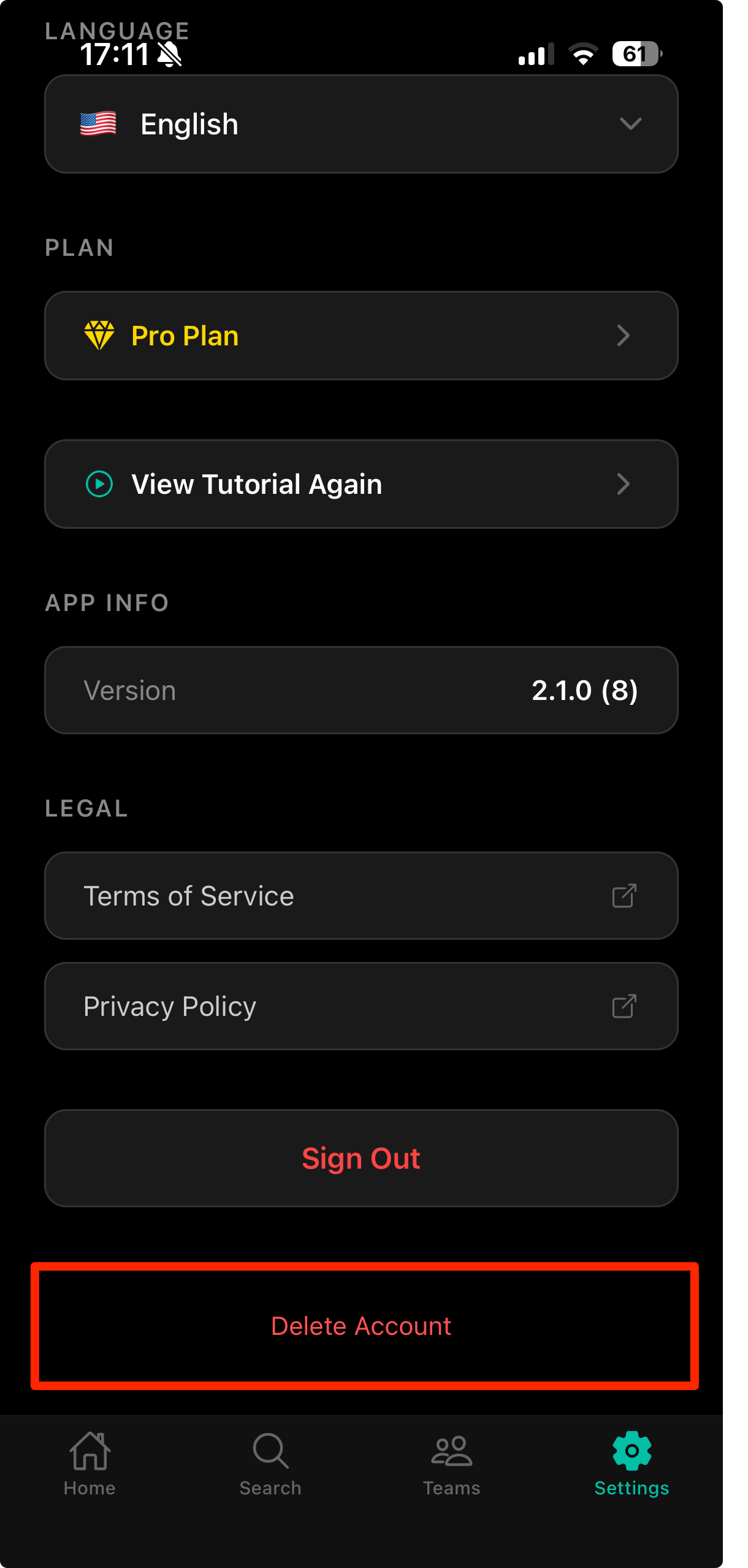
Tap 'Settings' in the footer, then tap 'Delete Account' to delete your account.
4.Team Features
Creating a Team (Admin)
Tap 'Teams' in the footer to open the Teams screen.
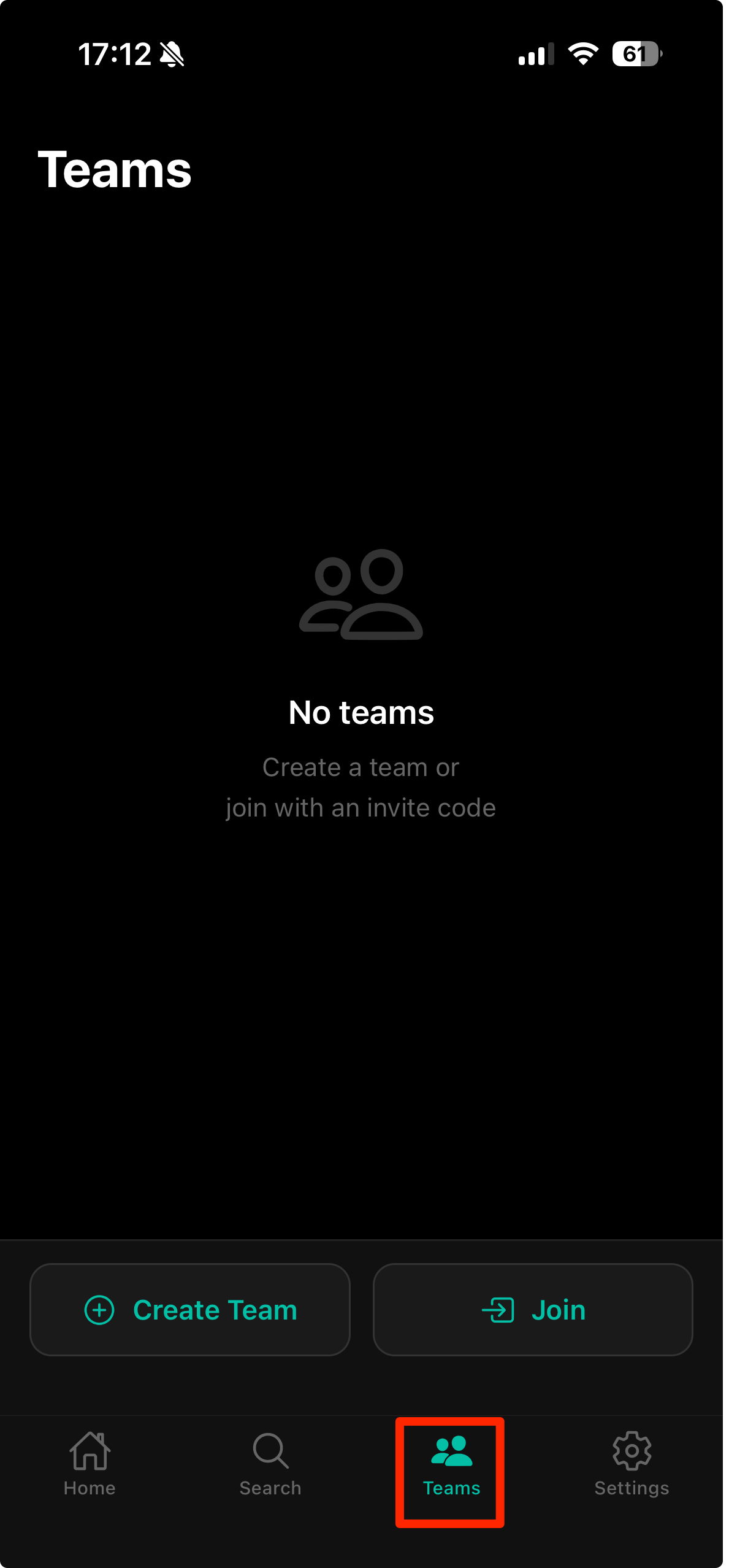
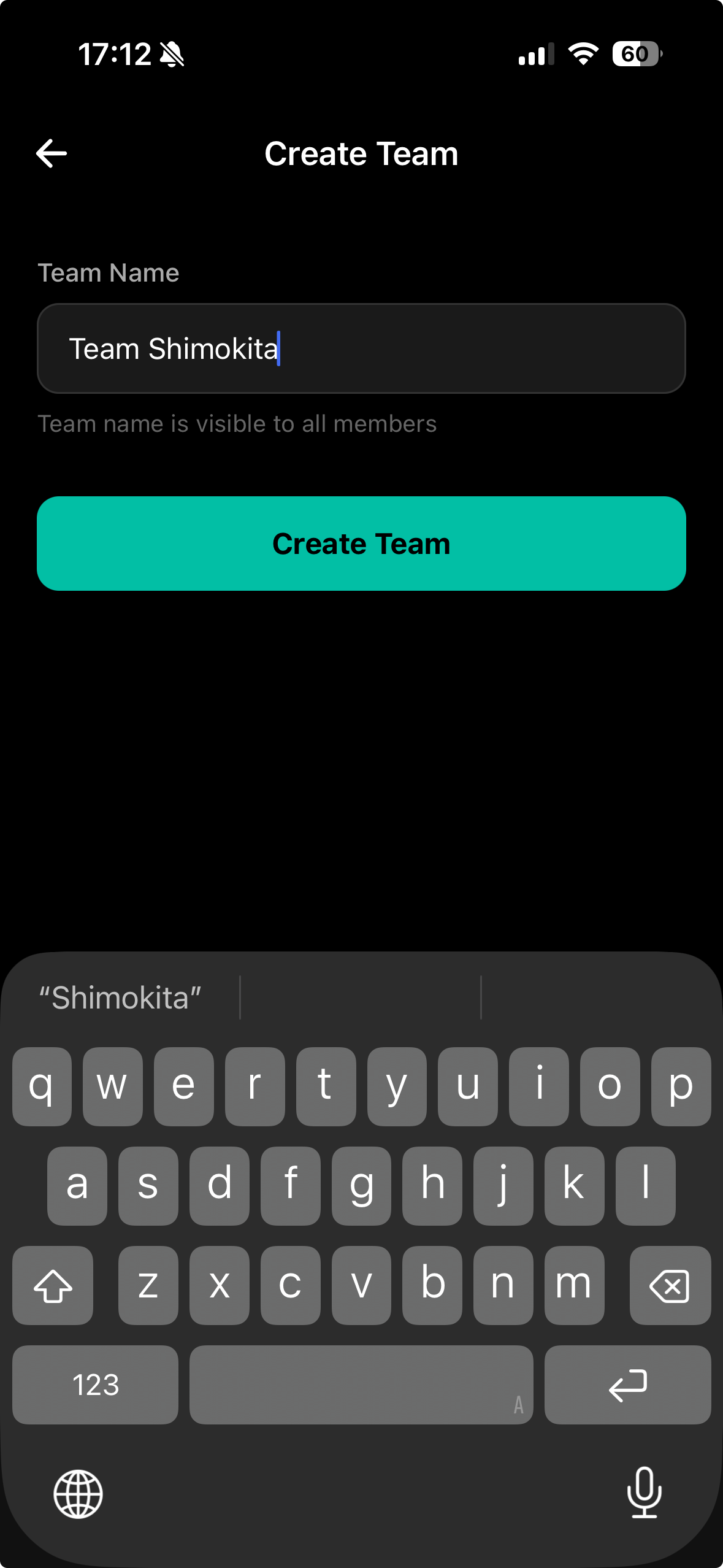
Tap 'Create Team', enter a team name, and tap 'Create Team' to create the team.
Editing a Team (Admin)
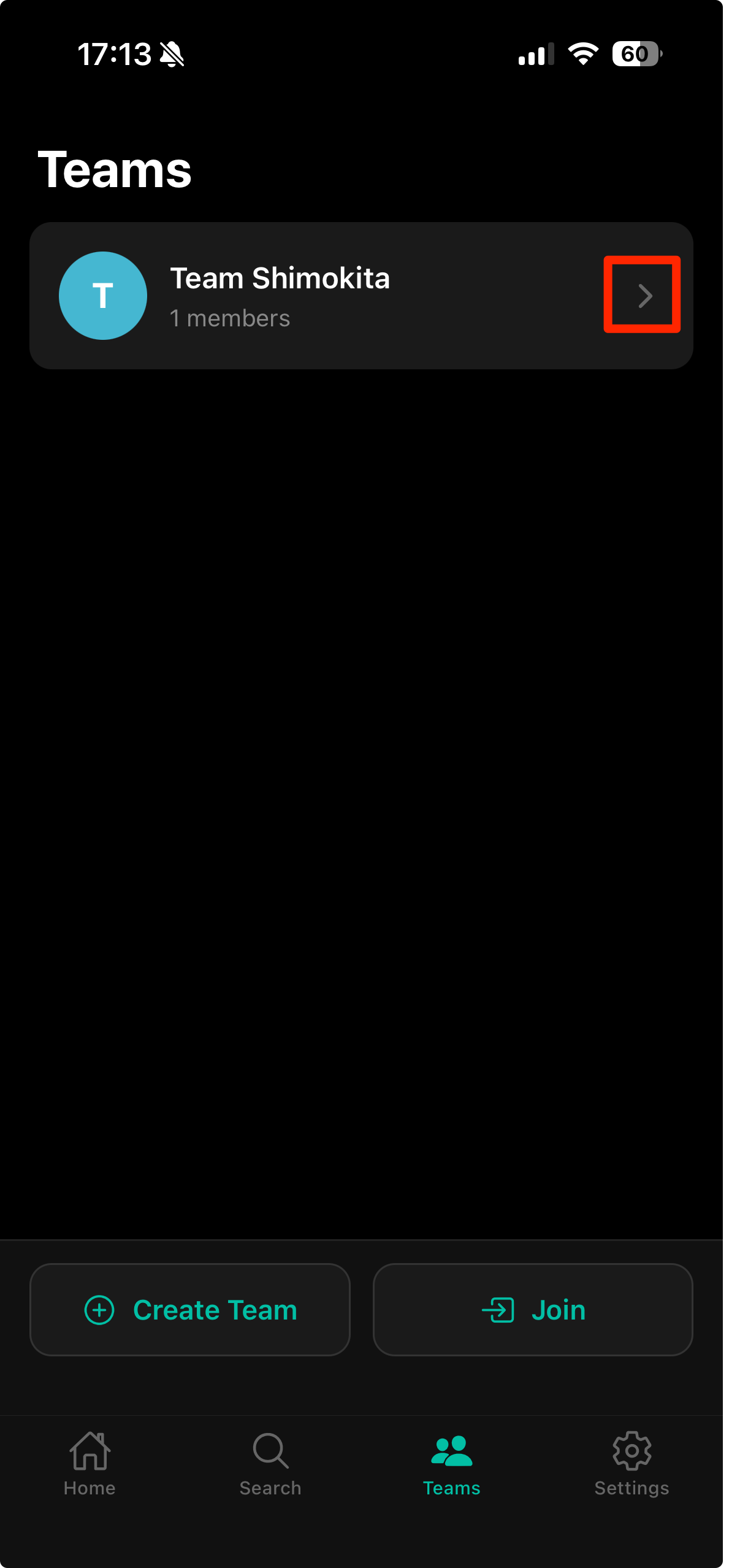
Tap a team card in the list to view the team detail screen.
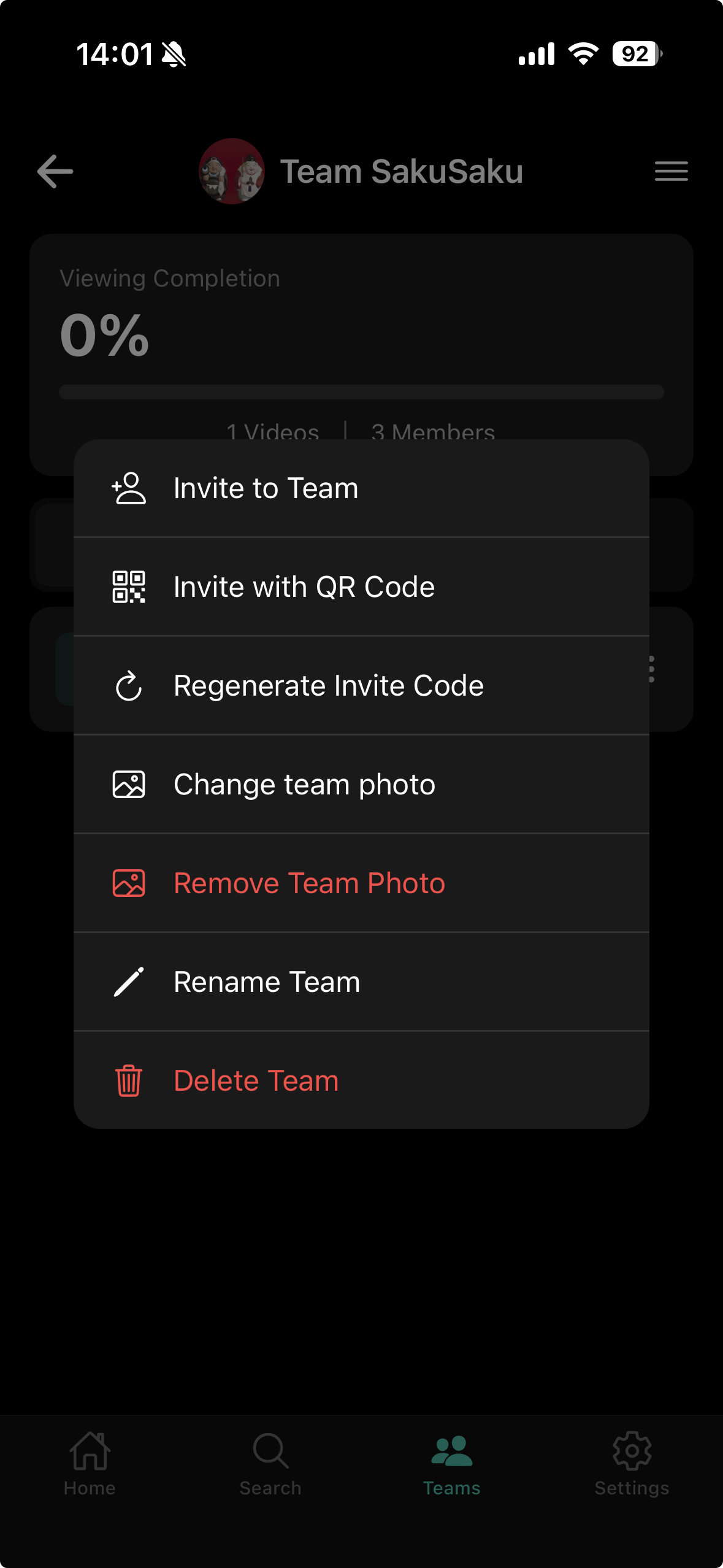
Tap the hamburger icon at the top-right of the team detail screen to open the edit menu.
Inviting to a Team (Admin)
Tap the hamburger icon at the top-right of the team detail screen and select 'Invite to Team' from the menu.
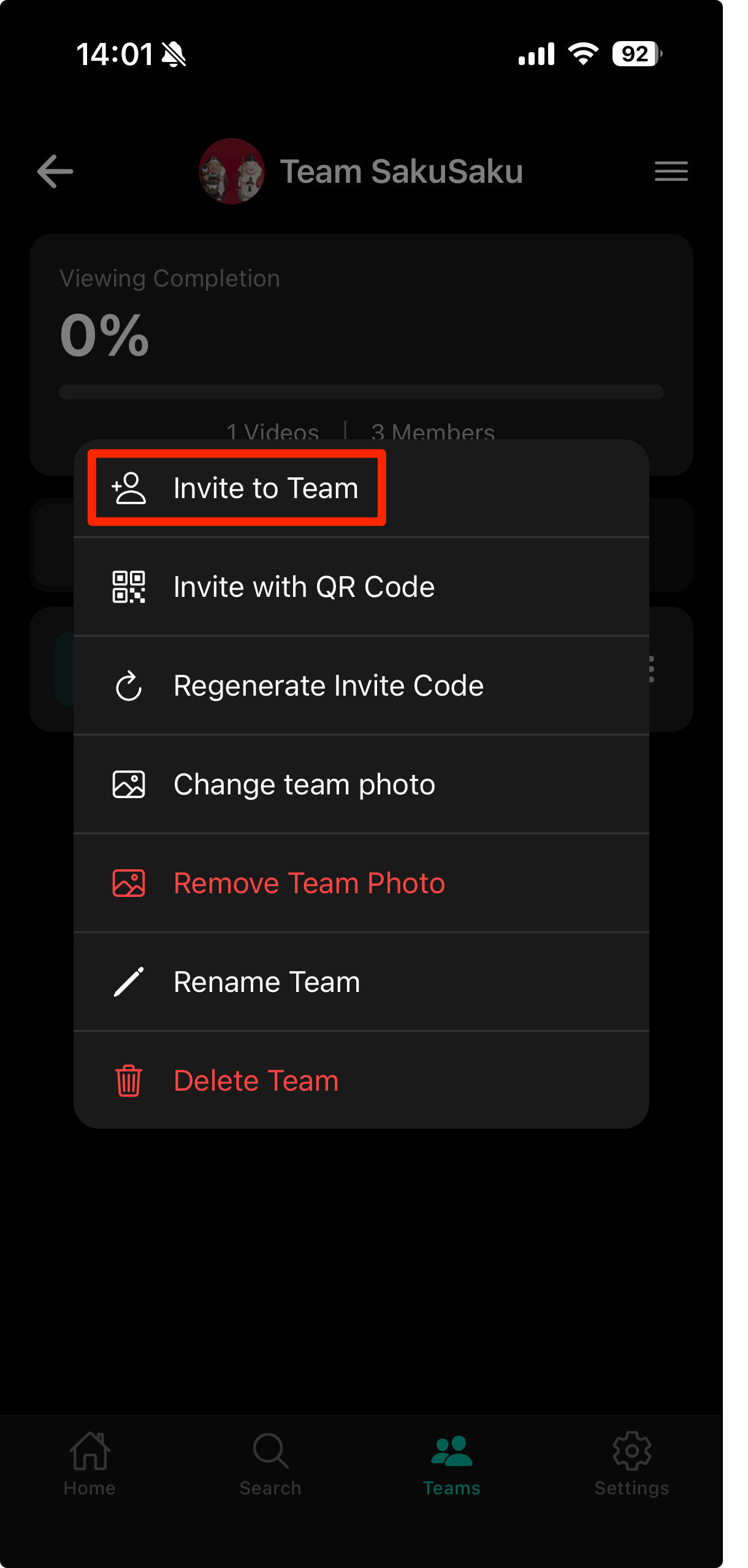
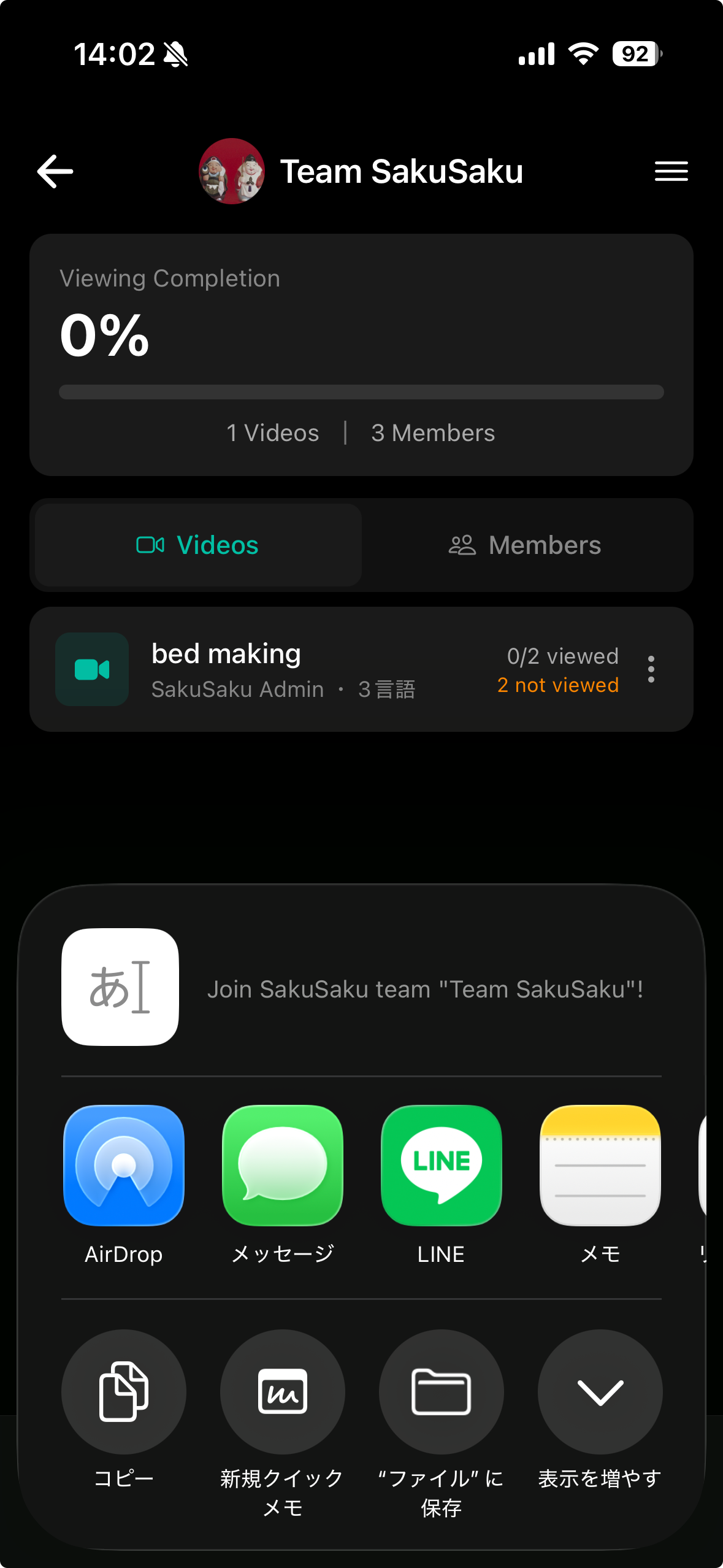
Use your device's share feature (SMS, LINE, or other messaging apps) to send the invitation code.
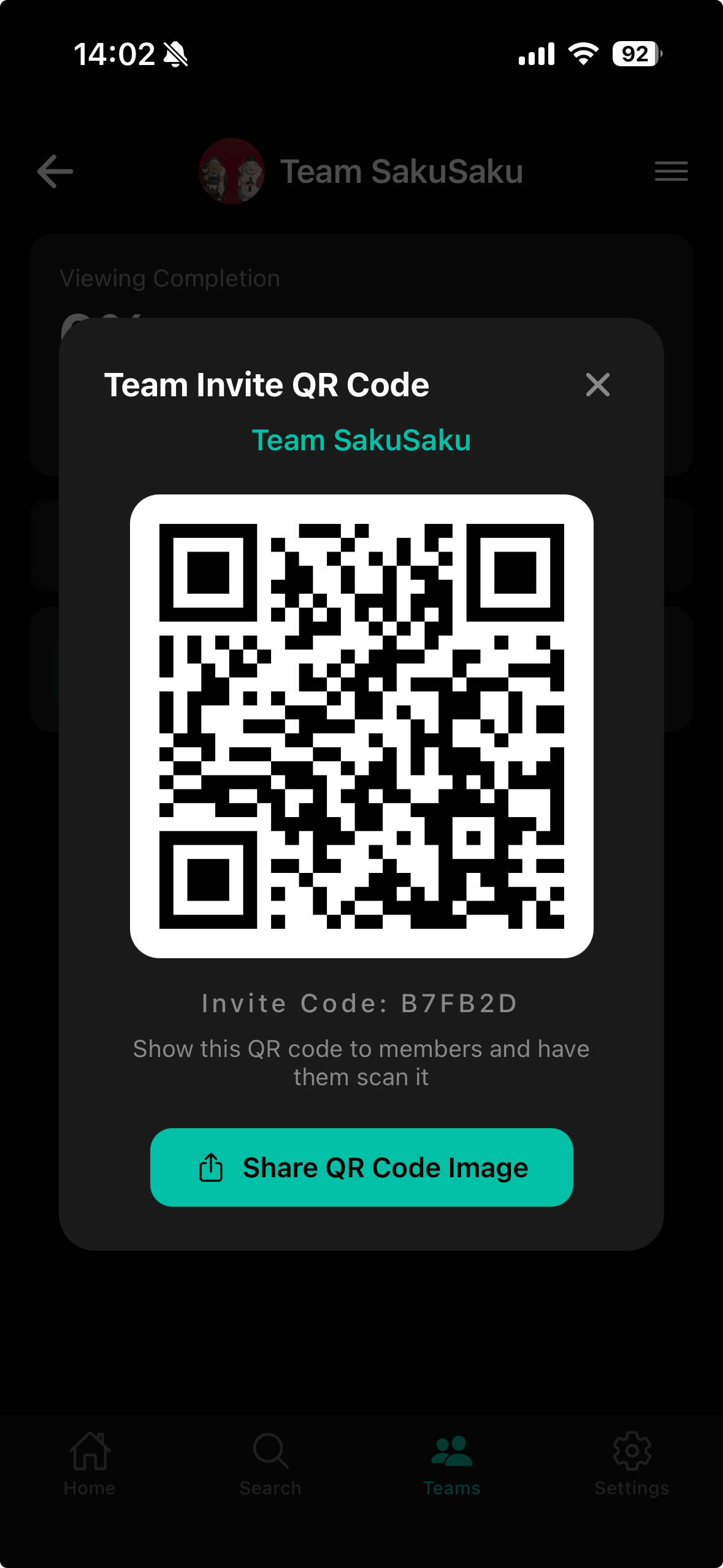
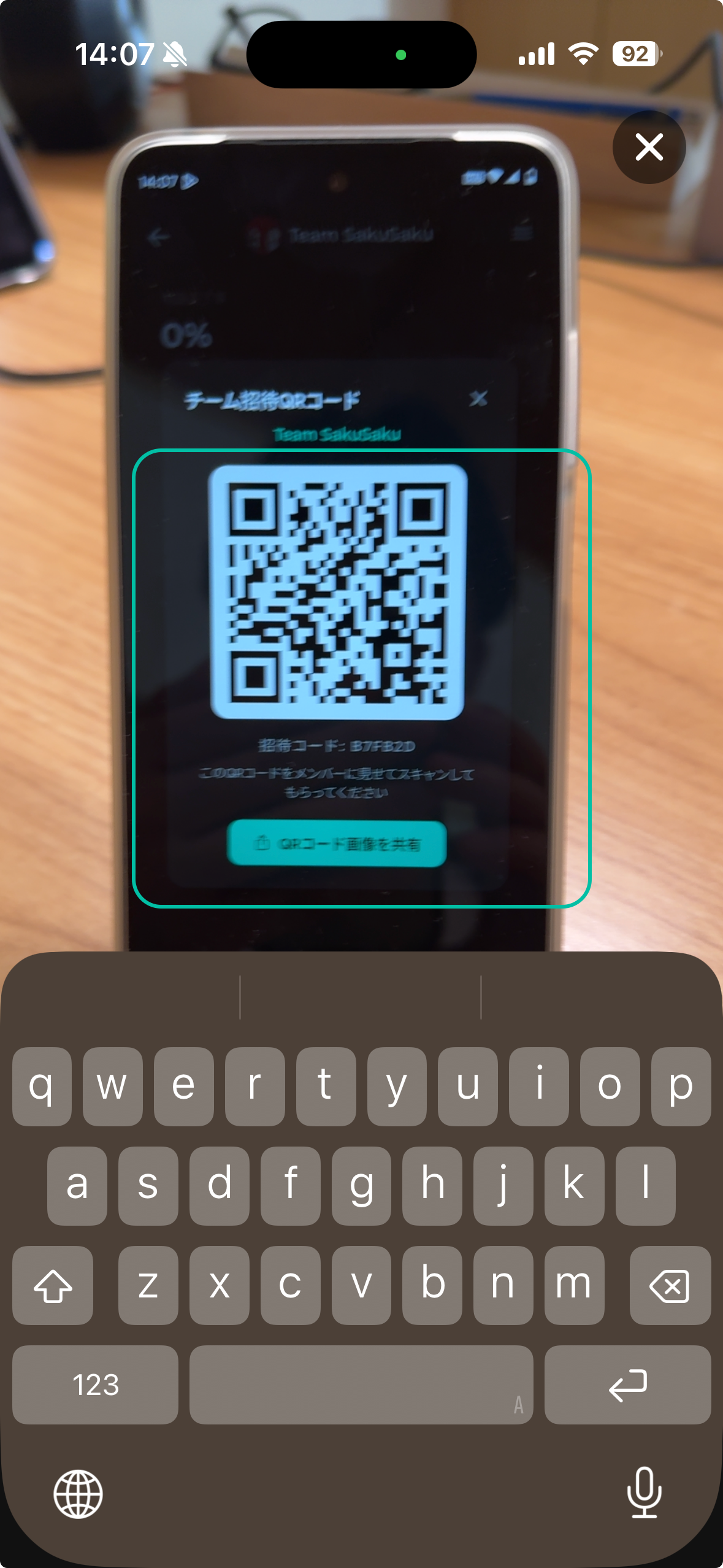
Alternatively, tap 'Invite with QR Code' from the menu to display a QR code containing the invitation code. Staff can scan this QR code with their camera to join the team without manually entering the code.
Joining a Team (Staff)
Tap 'Teams' in the footer to open the Teams screen.
Tap 'Join', enter the invitation code from your admin, and tap 'Join'.
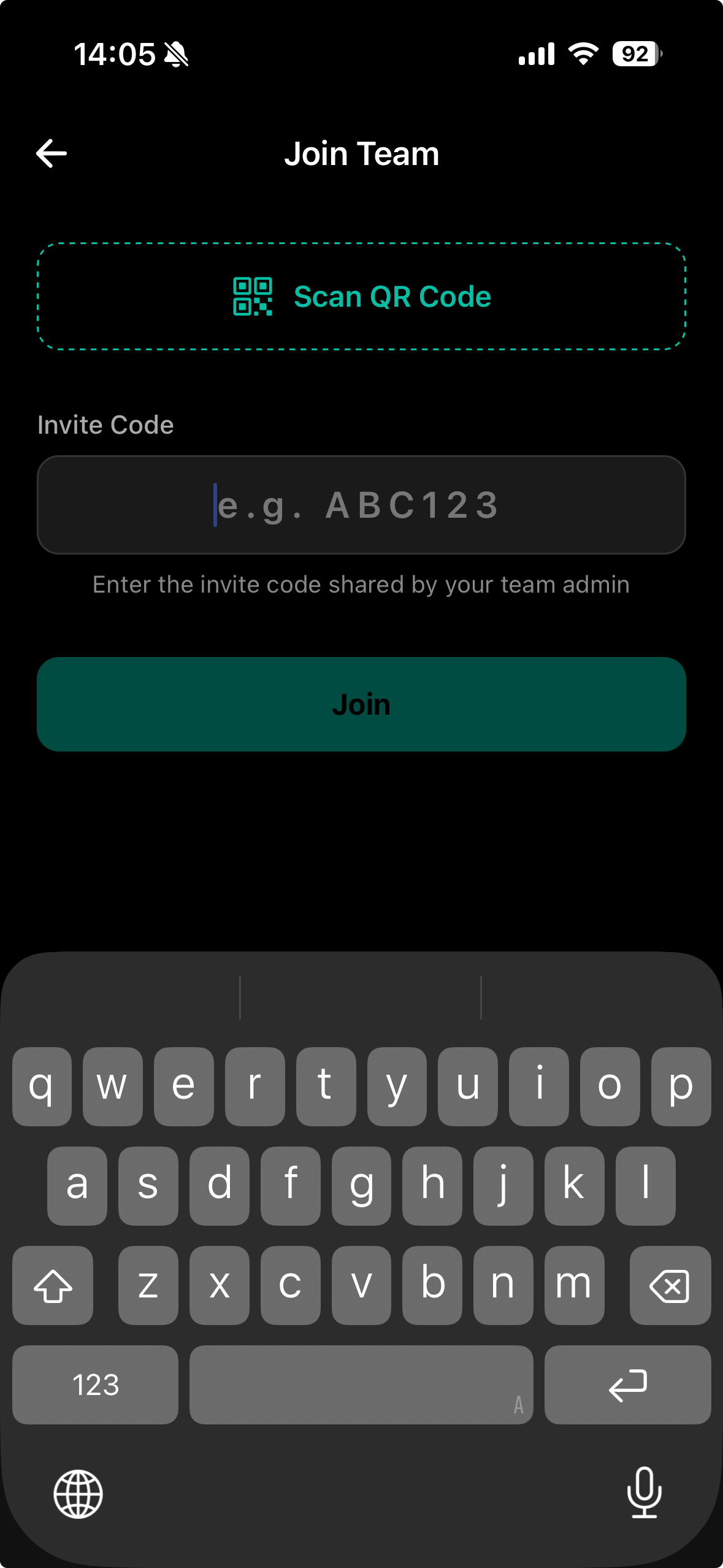
Alternatively, tap 'Scan QR Code' at the top of the screen to open the camera and scan the QR code shown by the admin to join the team without entering the code manually.
5.Home Screen
The 'My Videos' screen shows all videos you created (including drafts) as cards.
.png)
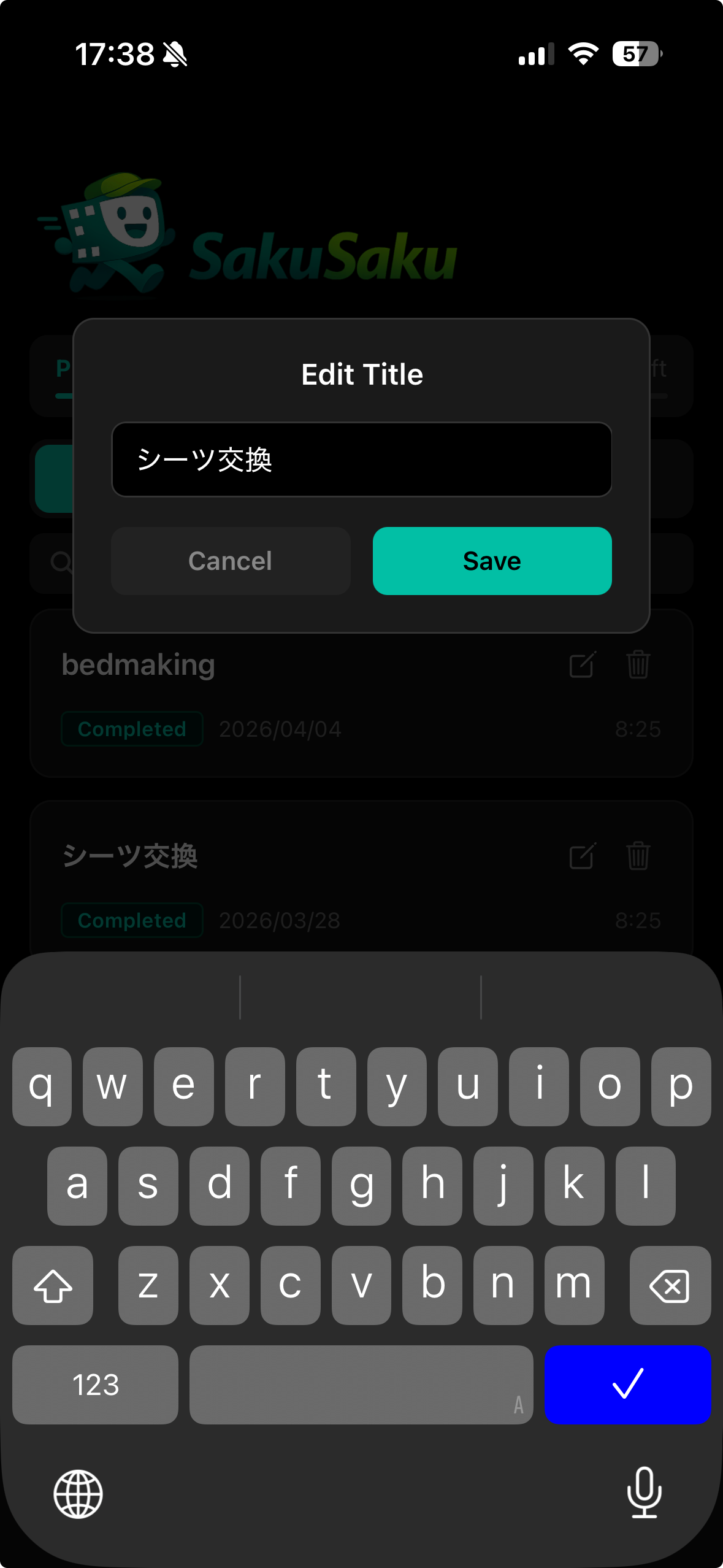
Tap the edit icon on a video card to edit its title.
Tap the trash icon on a video card to delete it.
Tap a video card to open its editing screen.
6.Creating & Editing Videos
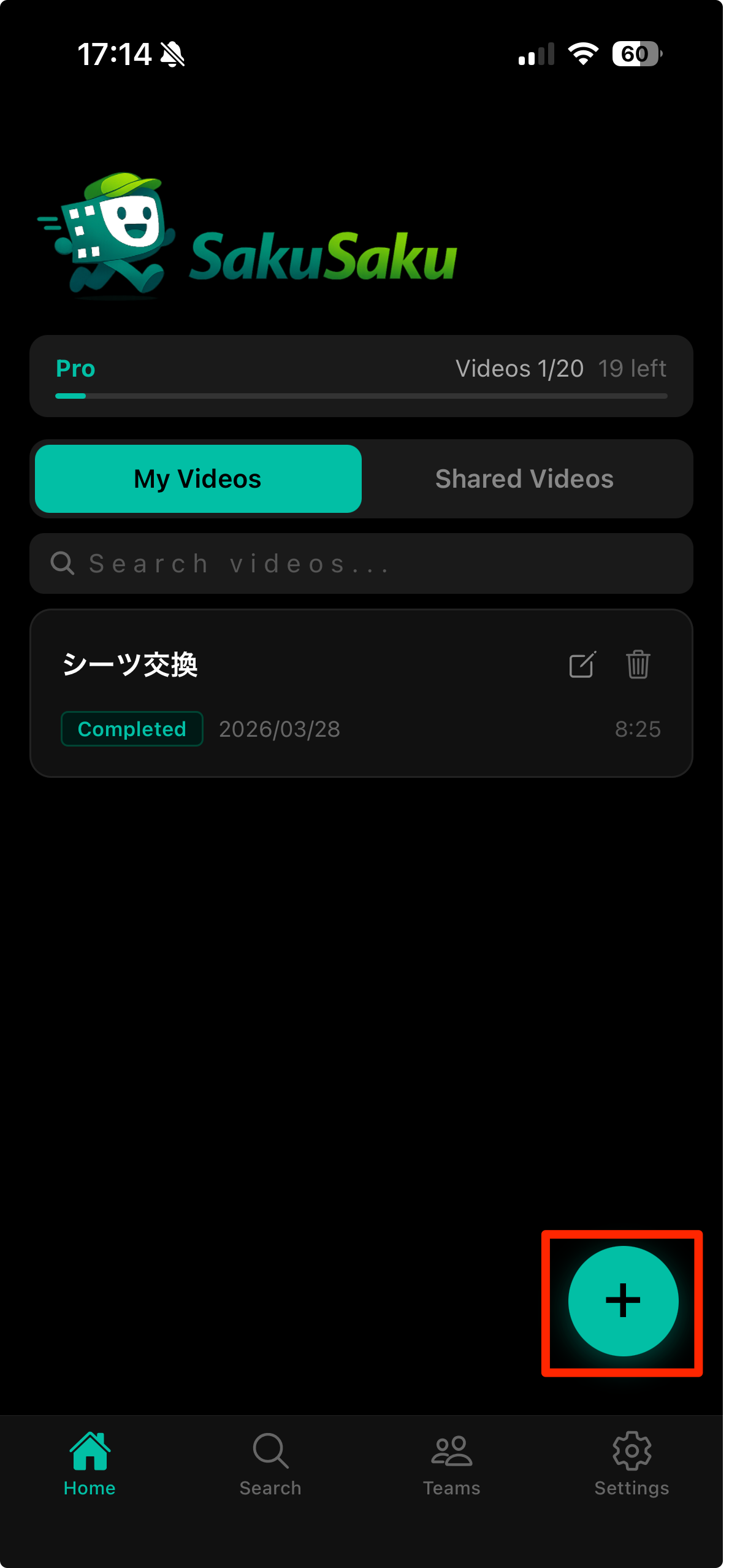
Tap the '+' icon at the bottom-right of the home screen to start creating a new video.
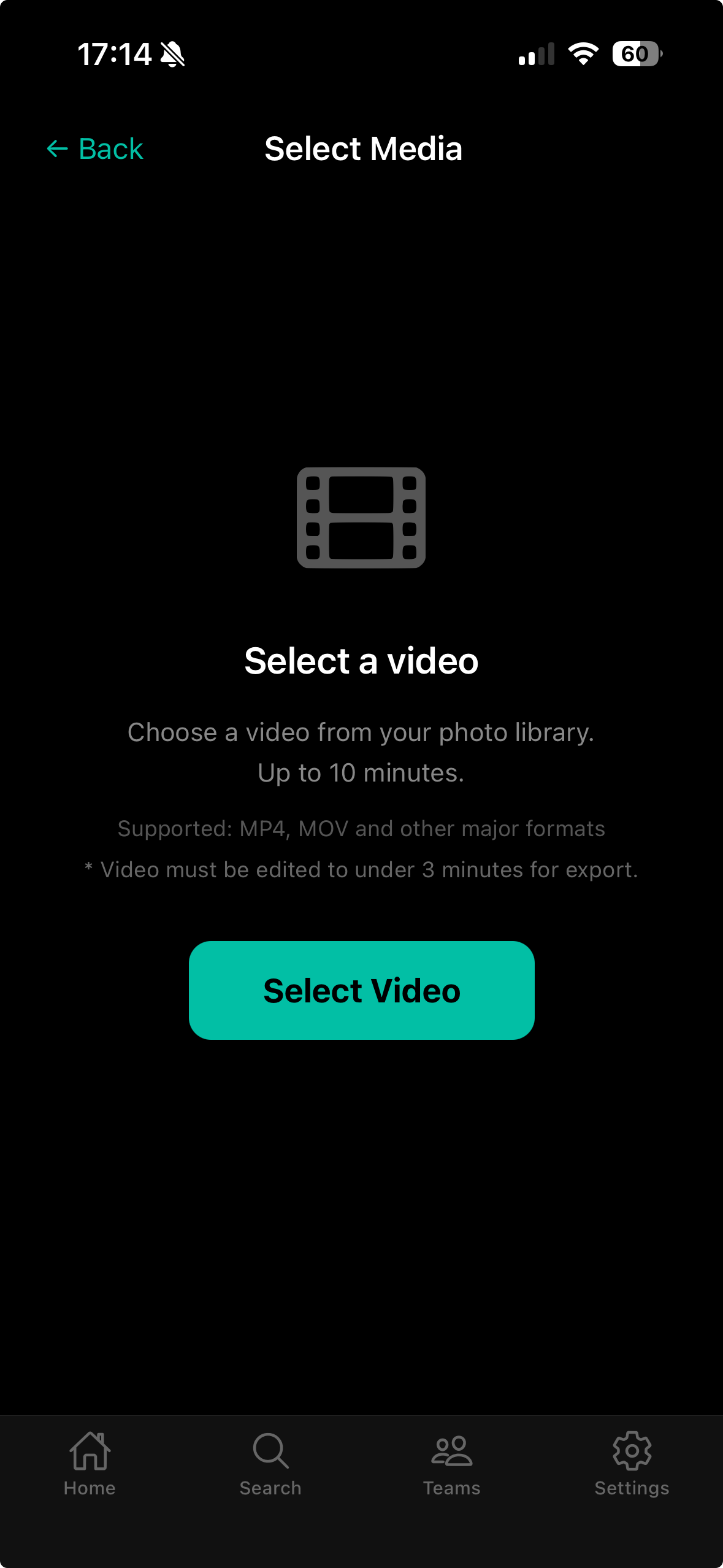
Select a video from your camera roll.
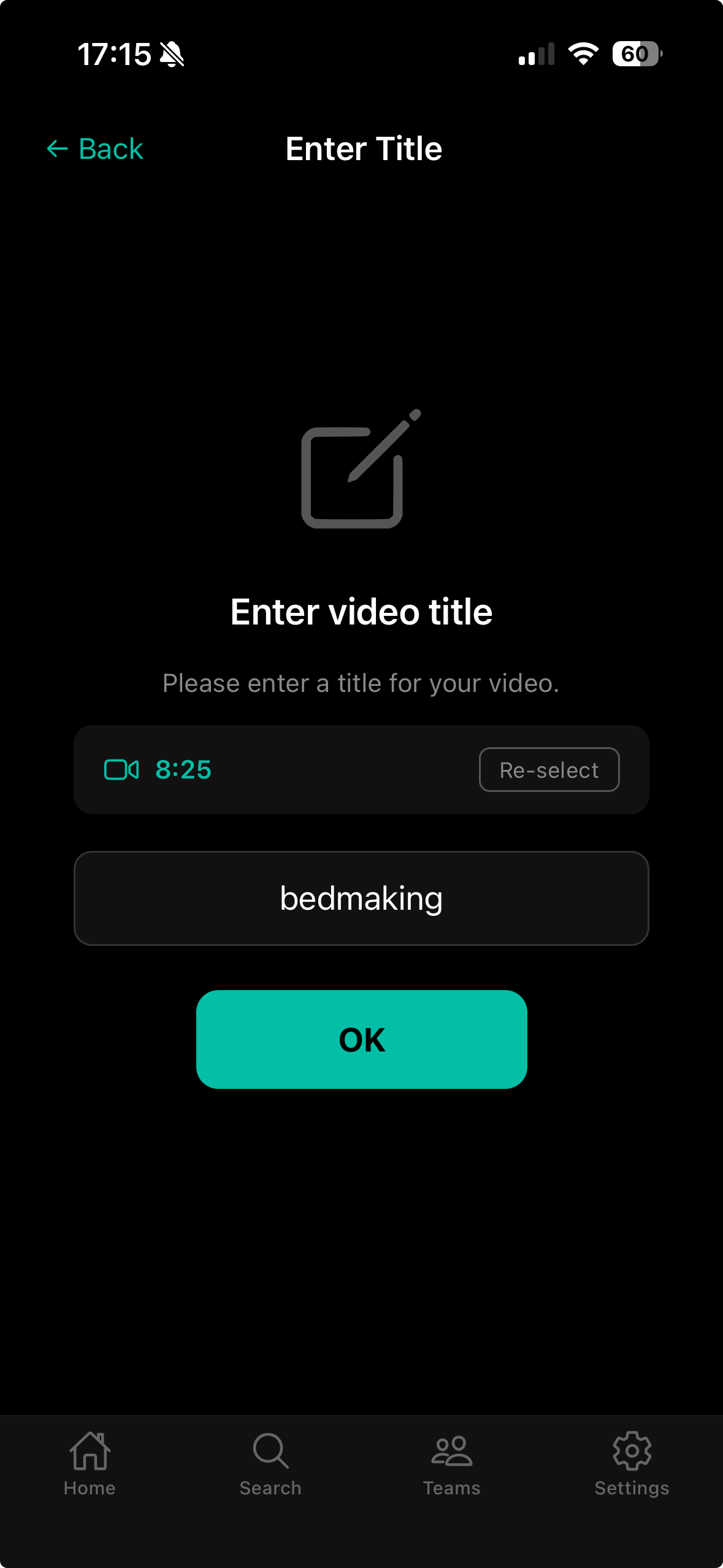
Enter a title for your video.
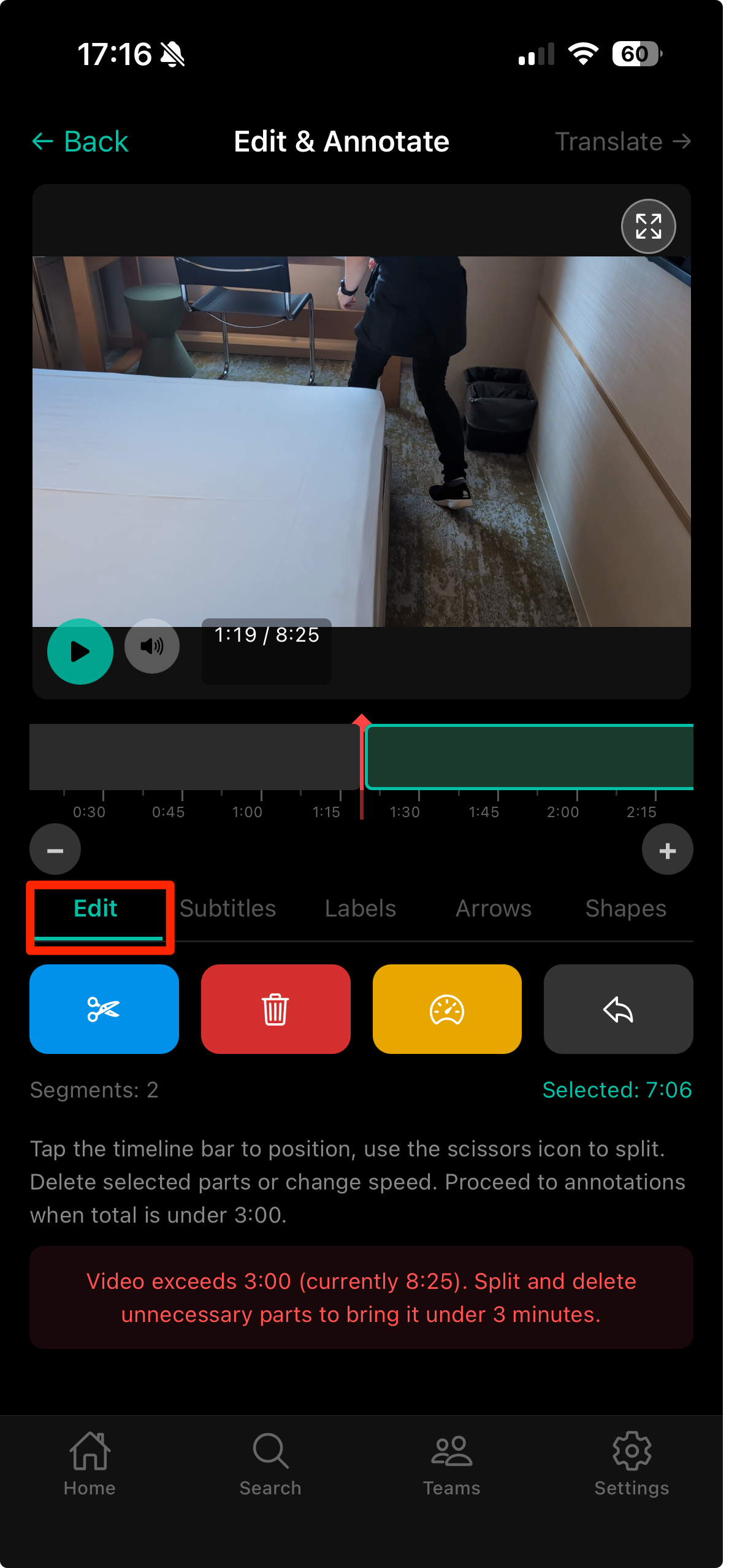
For videos longer than 3 minutes, use the edit tab to set segments and trim to the parts you need.
Set the start and end positions of a segment on the timeline.
Tap 'Add Segment' to create multiple segments.
Tap each segment to adjust its start and end times.
Delete unnecessary segments by swiping or tapping the delete button.
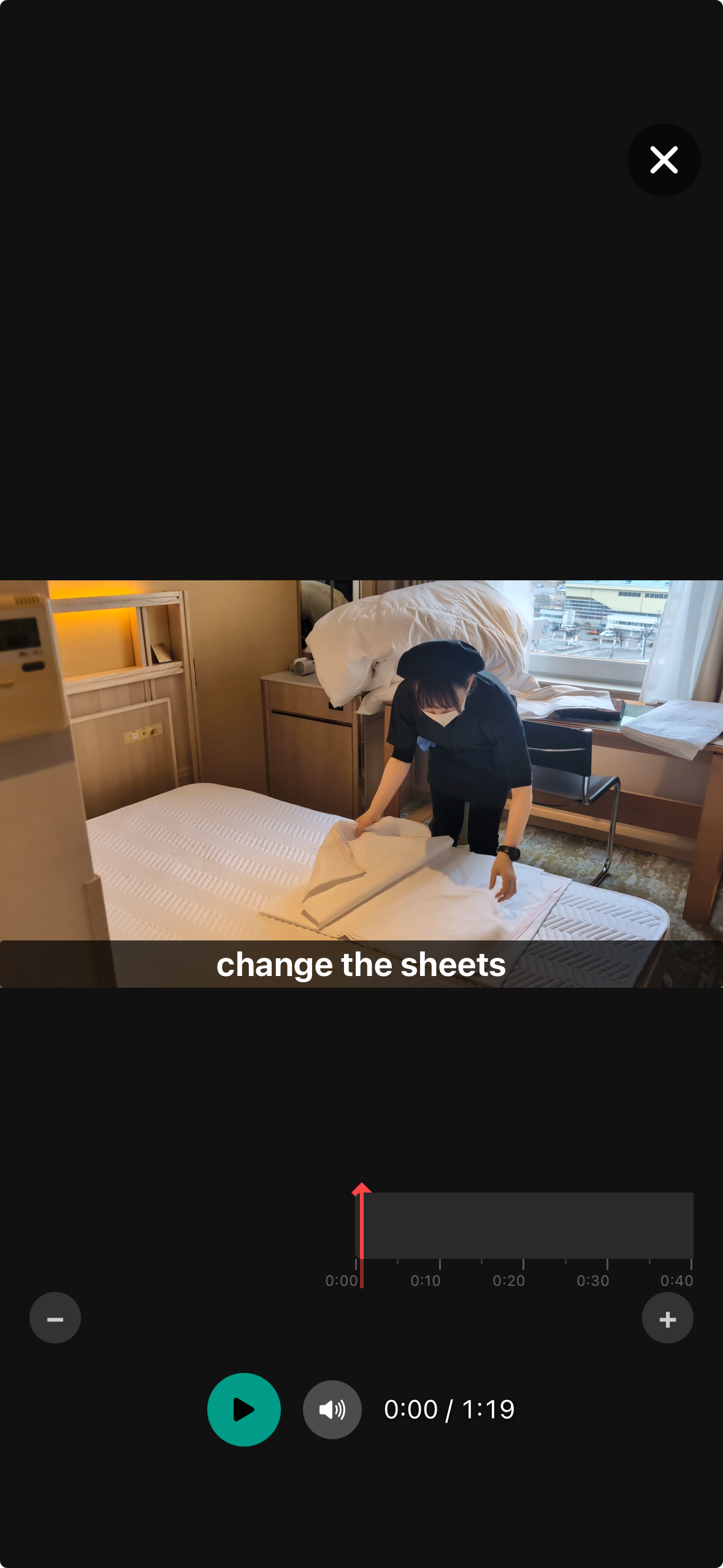
Use the annotation tab to add subtitles, labels, arrows, and shapes to your video.
Preview the video with annotations in the preview tab.
Translate subtitles and labels into multiple languages using the translation tab.
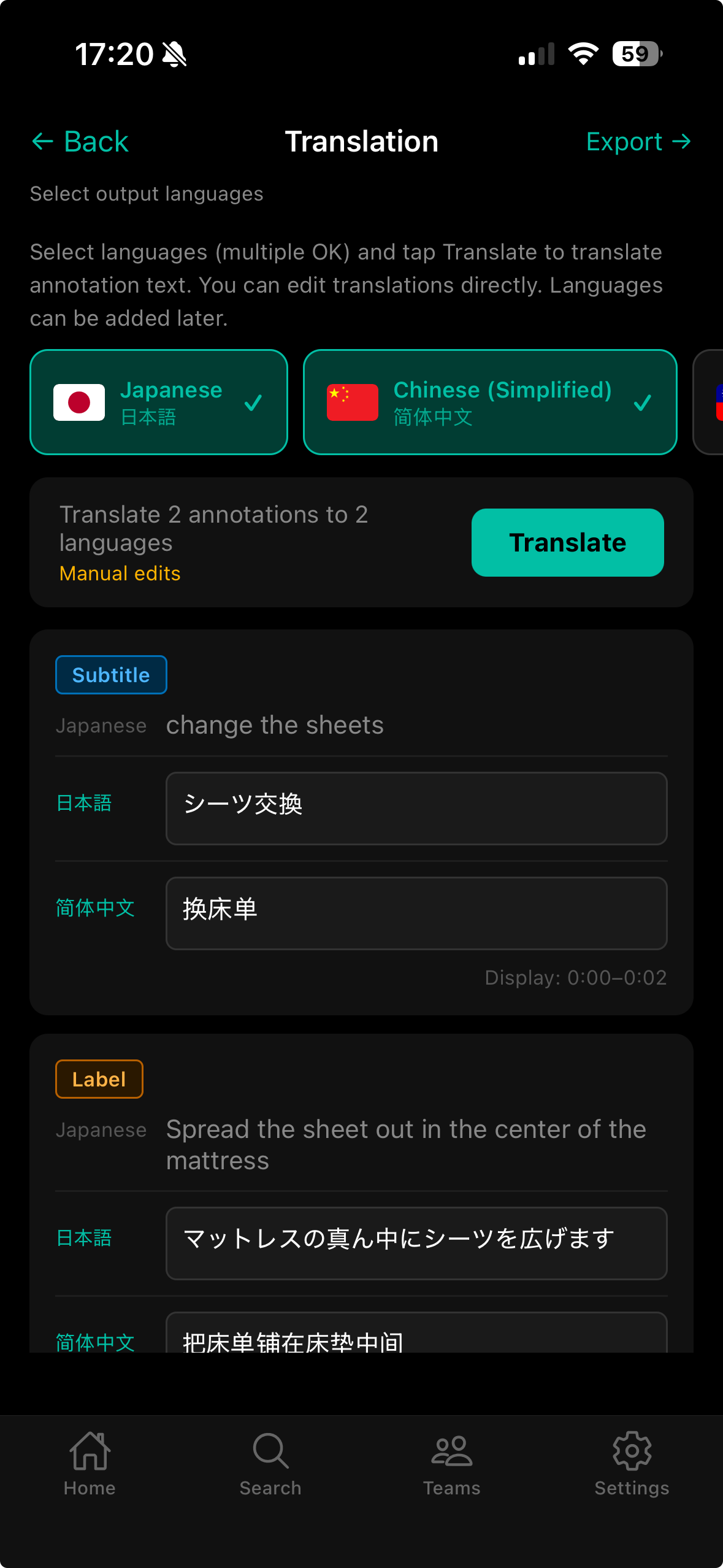
Select the target languages. You can select multiple languages at once.
Tap 'Translate' and AI will automatically translate the content.
Export the video from the export tab.
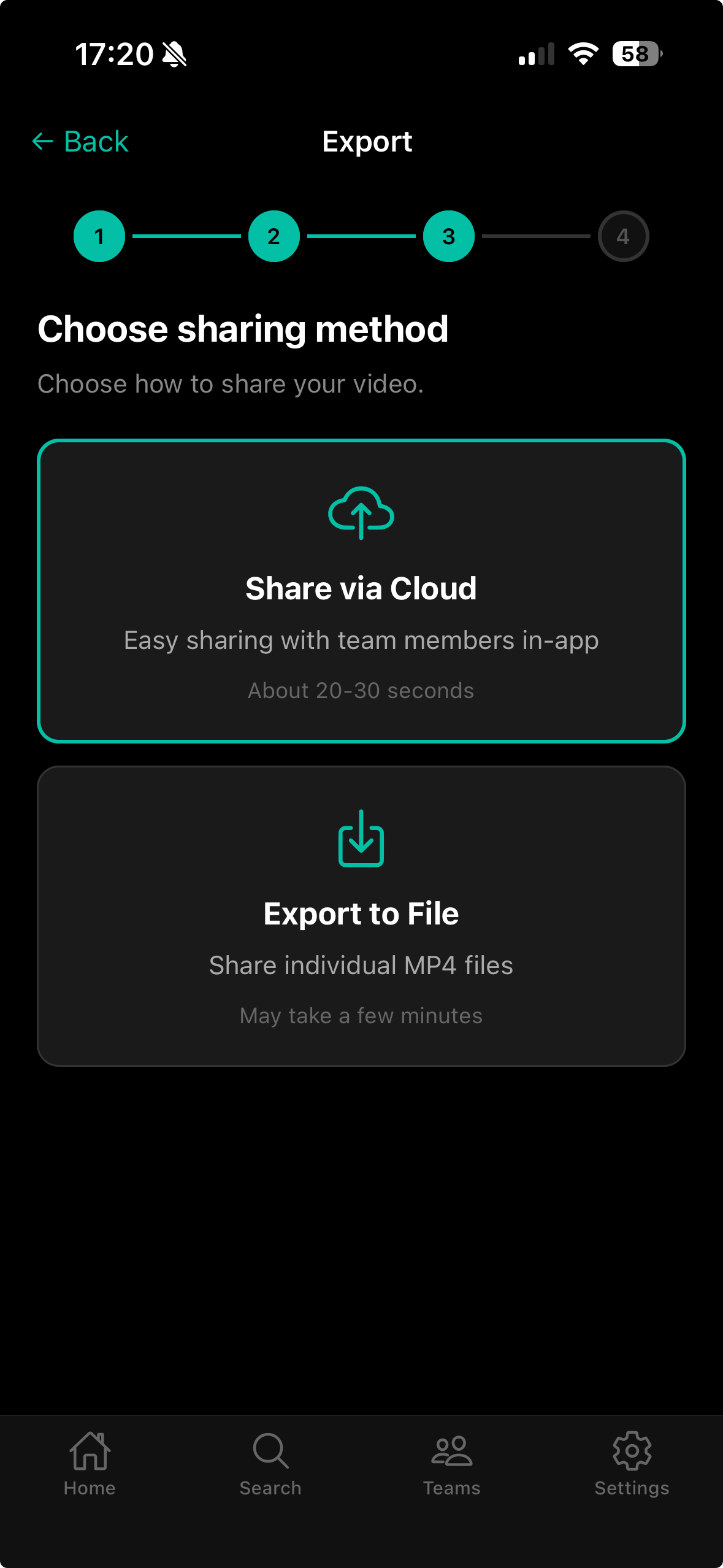
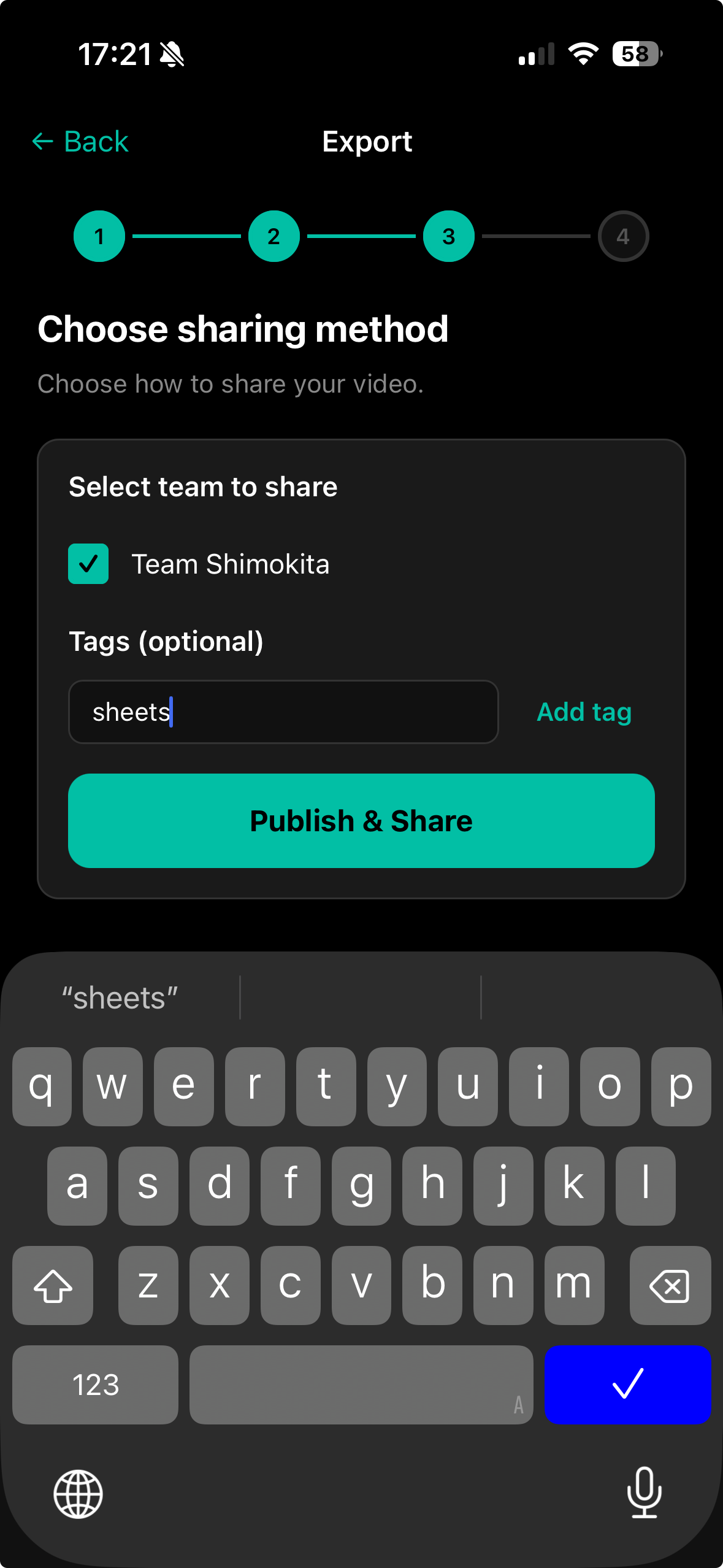
Tap 'Share to Cloud' to export in a format that can be shared with team members.
Select the target team and tags for sharing.
Tap 'Export to File' to save as a file on your device.
Select the language for export.
Choose a save location and save the file.
Wait for the export process to complete.
A completion screen is displayed when cloud sharing is finished.

Copy the share link to send via messaging apps.
Tap 'Back to Home' to return to the home screen.
7.Watching Videos
Tap the 'Shared Videos' tab on the home screen to see shared videos.
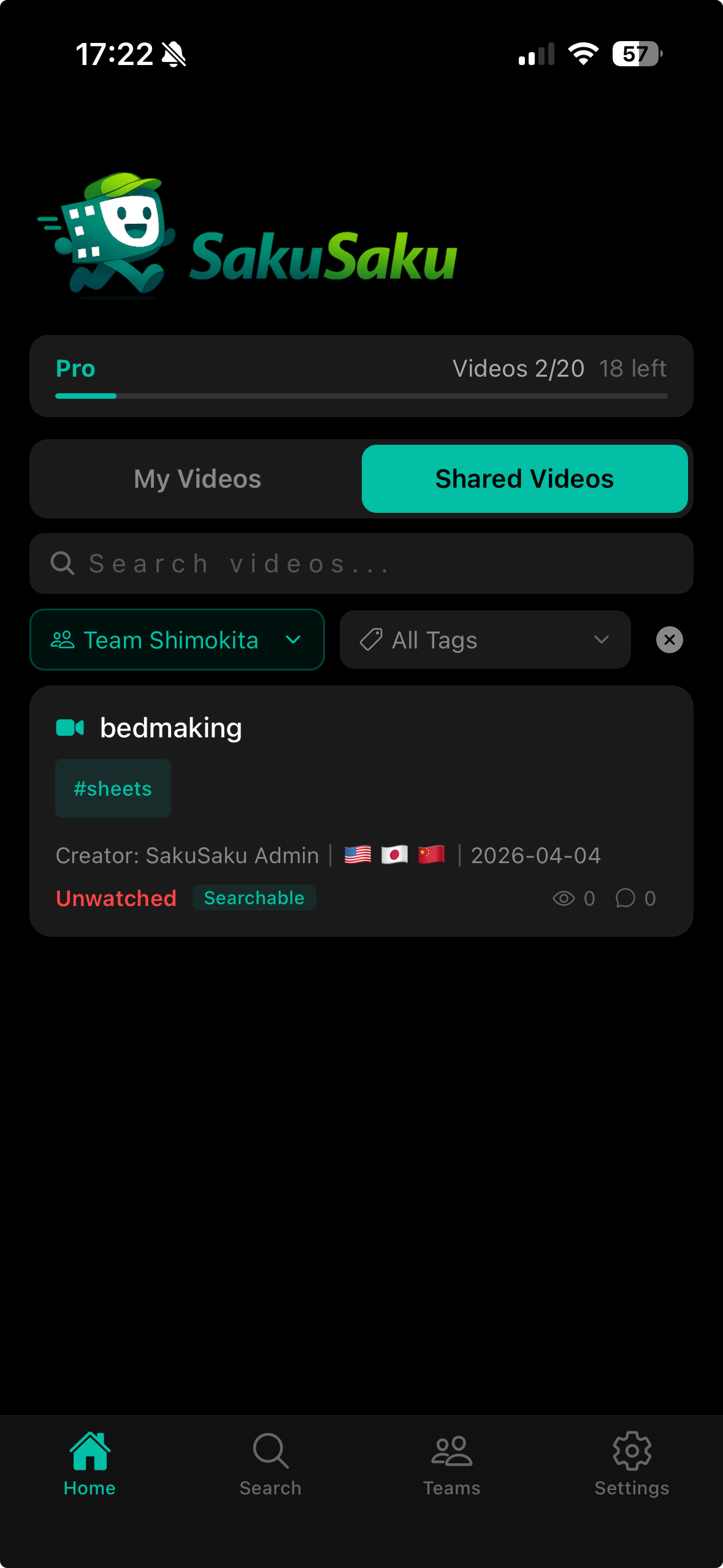
Tap a video card to open the video detail screen.
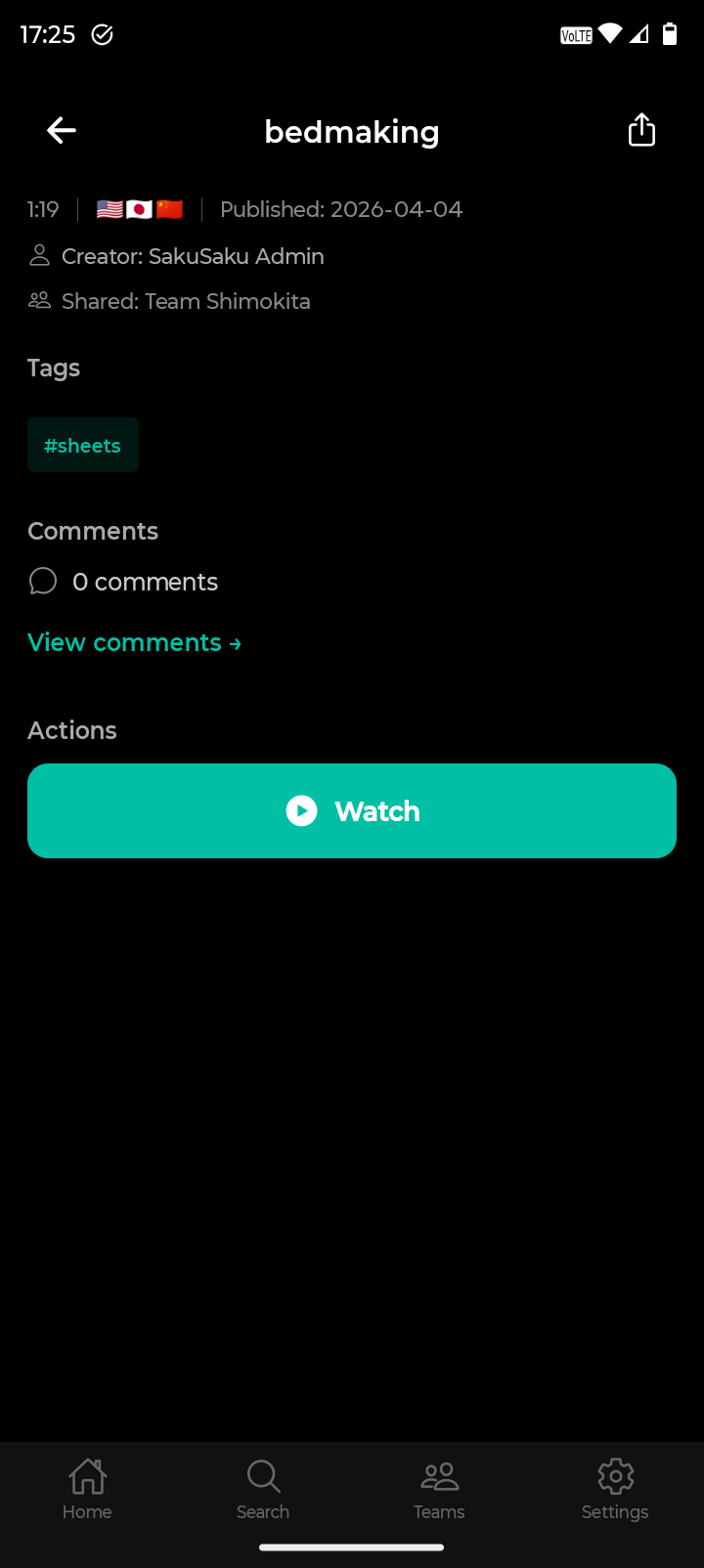
Tap the 'Watch' button to start watching the video.
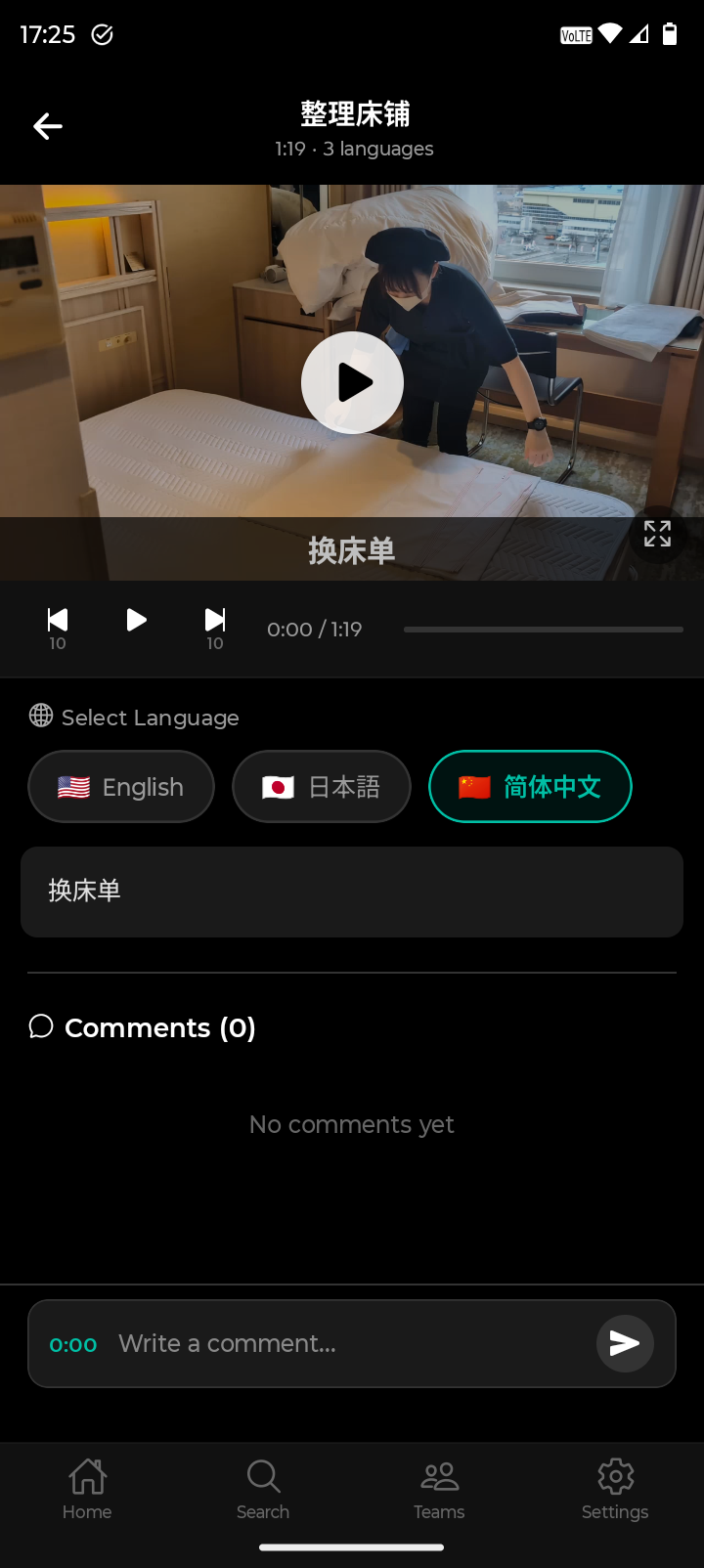
On the watching screen, you can do the following:
Switch the display language for subtitles and labels using the language button.
Post timestamped comments to communicate with other team members.
Tap a comment's timestamp to jump to that scene.
8.AI Search
Tap the search bar on the 'Shared Videos' tab of the home screen.
Enter what you want to find in natural language (e.g., 'how to clean the bathroom').
AI analyzes video scenes and displays matching results.
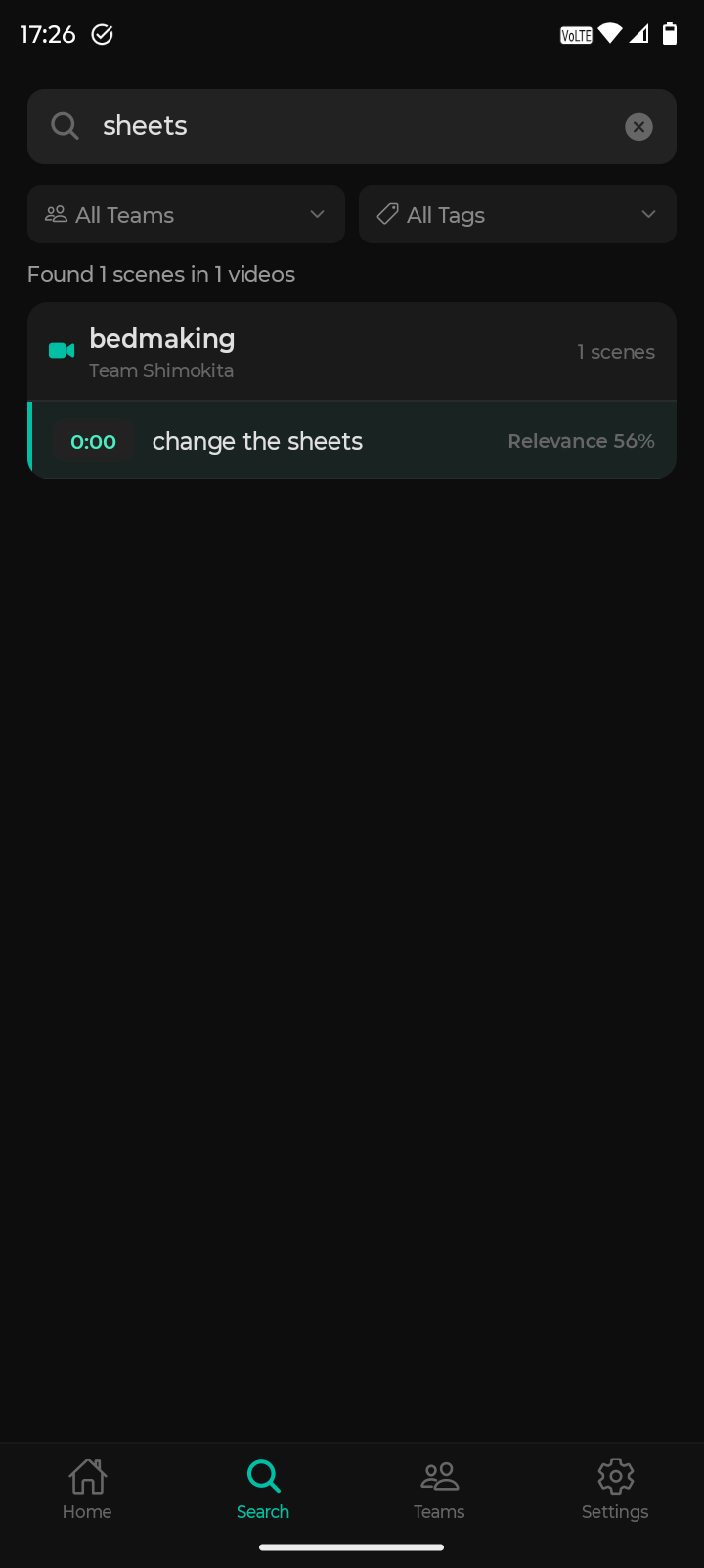
Search results show the team name and relevance score.
Tap a search result to start watching from that scene.
9.Settings
Tap 'Settings' in the footer to open the settings screen. You can check account info, change language, and view your plan.
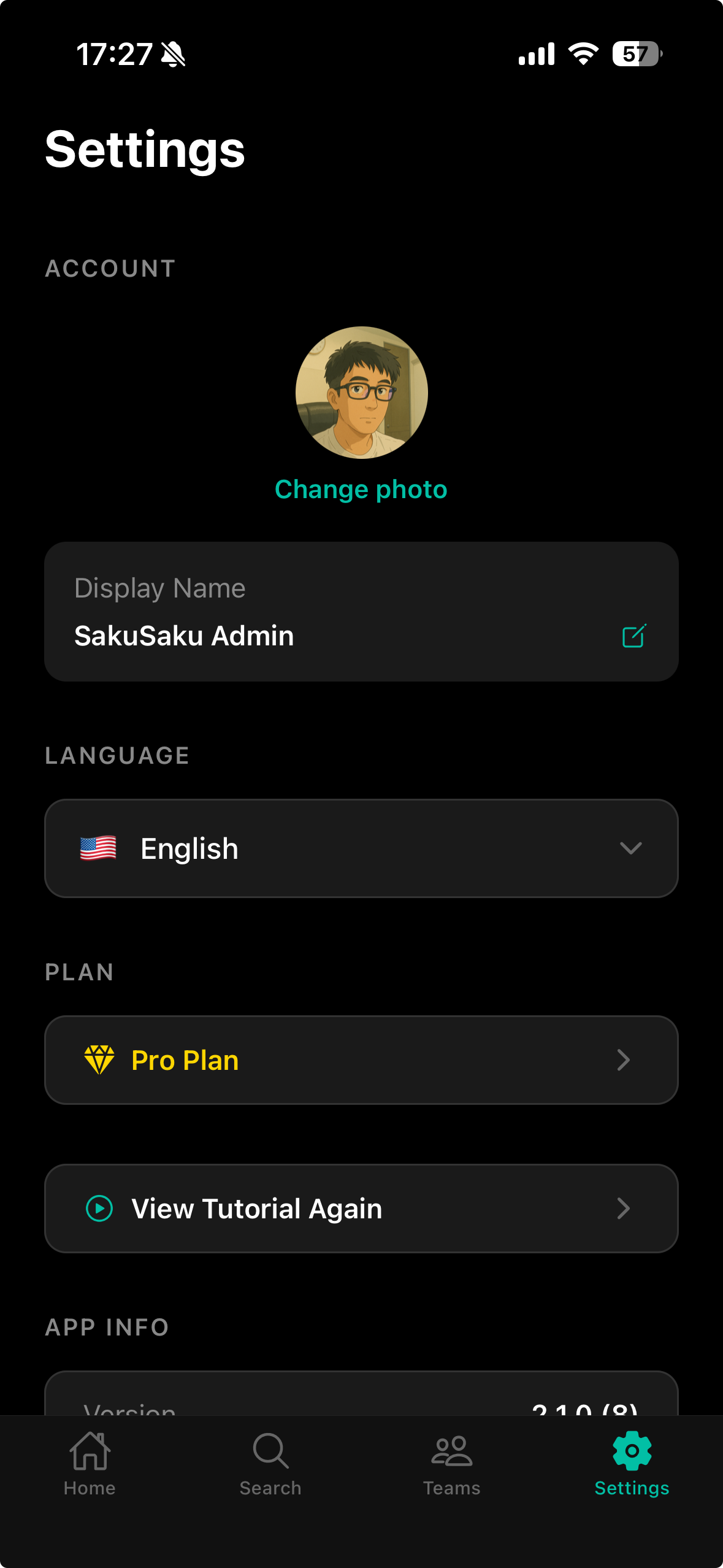
Tap 'View Tutorial Again' to review the app tutorial.